
Fedora Linux 44 was released on April 28, 2026, bringing another round of updates to one of the most popular cutting-edge Linux distributions. Fedora Workstation 44 ships with GNOME 50, along with improvements to applications, accessibility, color management, remote desktop functionality, and the wider desktop experience.
But installing Fedora is only the beginning.
While a fresh Fedora 44 installation is perfectly usable out of the box, there are several things you can do to make the system more complete, convenient, and ready for everyday use.
From installing updates and multimedia codecs to enabling Flathub, configuring NVIDIA drivers, updating firmware, and setting up backups, here are 10 things you should do after installing Fedora 44.
Note: This guide is mainly written for Fedora Workstation 44 with GNOME 50. Most of the command-line steps also apply to other traditional Fedora editions, but Fedora Atomic Desktops such as Silverblue use a different system-management model.
1. Update Fedora 44
The first thing you should do after installing Fedora is update the system.
The Fedora installation image was created before you installed it, which means newer security patches, bug fixes, kernel updates, and application updates may already be available.
Open Terminal and run:
sudo dnf upgrade --refreshThe --refresh option forces DNF to refresh repository metadata before checking for updates. Fedora’s DNF documentation supports dnf upgrade --refresh for this purpose.
Depending on how many updates are available, the download may take a few minutes.
Once the update completes, reboot the computer:
sudo rebootKeeping Fedora updated
Later, you can check for updates simply by running:
sudo dnf upgradeYou can also install updates graphically using the Software application.
2. Enable RPM Fusion Repositories
Fedora’s official repositories contain a huge collection of open-source software, but Fedora deliberately does not distribute certain applications, codecs, and proprietary components.
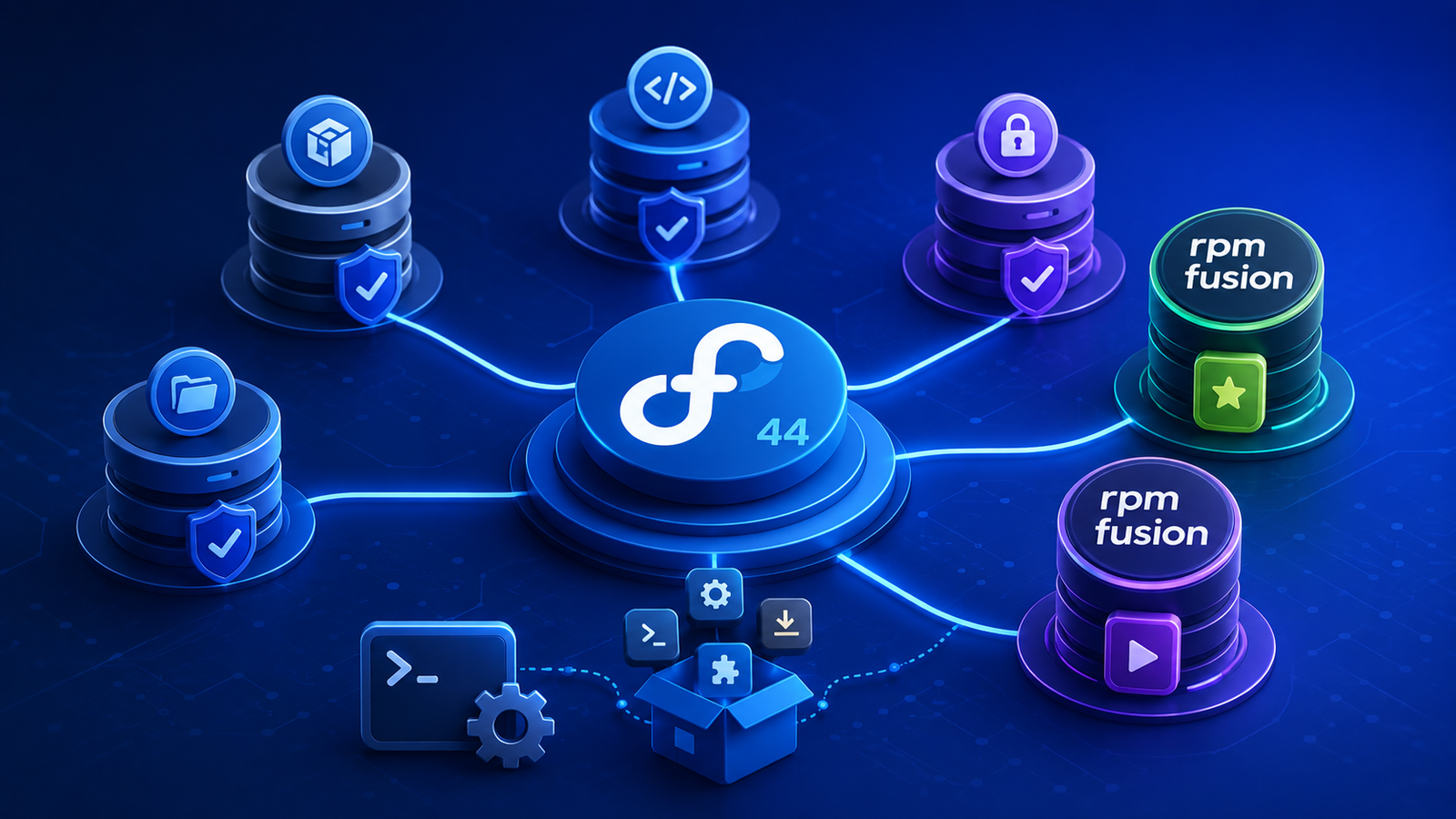
This is where RPM Fusion becomes useful.
RPM Fusion is an independent third-party software repository that provides packages that Fedora and Red Hat do not distribute themselves.
To enable both RPM Fusion Free and Nonfree repositories, run:
sudo dnf install \
https://mirrors.rpmfusion.org/free/fedora/rpmfusion-free-release-$(rpm -E %fedora).noarch.rpm \
https://mirrors.rpmfusion.org/nonfree/fedora/rpmfusion-nonfree-release-$(rpm -E %fedora).noarch.rpm
RPM Fusion’s Fedora configuration documentation provides this repository setup for current Fedora releases.
After installation, update the repository metadata:
sudo dnf upgrade --refreshYou can verify that RPM Fusion is enabled with:
dnf repolistYou should see entries for RPM Fusion among the enabled repositories.
Why enable RPM Fusion?
RPM Fusion gives Fedora users access to additional software including:
- multimedia components;
- NVIDIA drivers;
- applications unavailable in Fedora;
- additional hardware support;
- software with licensing restrictions that prevent Fedora from distributing it directly.
You do not necessarily need RPM Fusion on every Fedora computer, but it is one of the most useful additions for a general-purpose desktop.
3. Install Multimedia Codecs
One surprise for some new Fedora users is that certain audio and video formats may not work immediately.
Fedora focuses strongly on free and open-source software and therefore cannot distribute every multimedia codec directly.
After enabling RPM Fusion, you can expand Fedora’s multimedia support.
RPM Fusion currently recommends installing its multimedia package group with:
sudo dnf install @multimedia --setopt="install_weak_deps=False" --exclude=PackageKit-gstreamer-pluginIf you want the full RPM Fusion FFmpeg package instead of Fedora’s limited ffmpeg-free build, RPM Fusion also documents:
sudo dnf swap ffmpeg-free ffmpeg --allowerasingAfter installation, applications that rely on FFmpeg or GStreamer should support a much wider range of multimedia formats.
This is particularly useful if you:
- play locally stored video files;
- edit video;
- work with different audio formats;
- use third-party media applications;
- encounter files that previously refused to play.
4. Enable Flathub for More Applications
Fedora already includes excellent application management, but adding Flathub dramatically expands the selection of desktop software available through Flatpak.
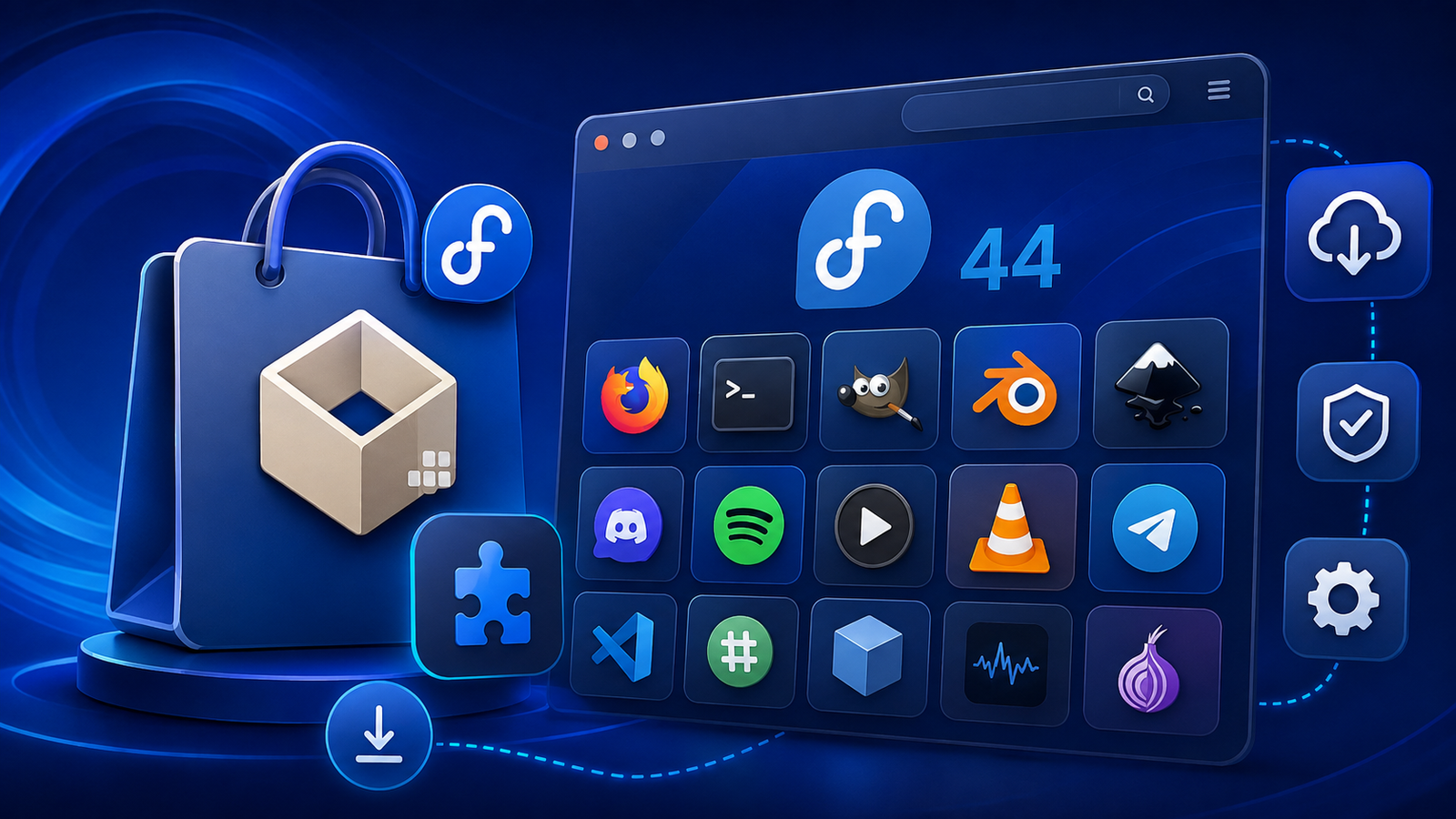
Flatpak applications are sandboxed and largely independent of the underlying Fedora package versions.
You can check whether Flathub is already configured by running:
flatpak remotesIf you see flathub, you are ready to go.
Otherwise, add it with:
flatpak remote-add --if-not-exists flathub https://dl.flathub.org/repo/flathub.flatpakrepoThis is the standard command documented by Flatpak for adding the Flathub remote.
You can then search for applications:
flatpak search gimpAnd install one using:
flatpak install flathub application-idTo update installed Flatpak applications:
flatpak updateFlathub provides a large catalog of Linux applications and games and is particularly convenient for desktop software.
RPM or Flatpak?
You do not need to choose only one.
A practical approach is to use RPM packages for system-level software and Flatpak for many standalone desktop applications.
For example, development libraries, command-line tools, drivers, and system utilities generally make more sense as Fedora packages, while browsers, media applications, communication tools, and creative applications can work very well as Flatpaks.
5. Install NVIDIA Drivers If Your Computer Needs Them
Users with Intel and AMD graphics generally do not need to install a separate proprietary graphics driver after installing Fedora.
NVIDIA users are a different case.
If your system contains a supported NVIDIA GPU and you want NVIDIA’s driver, RPM Fusion provides packages designed to integrate with Fedora’s kernel and package-management system. RPM Fusion maintains a dedicated NVIDIA installation guide for Fedora.
First, identify your graphics hardware:
lspci | grep -Ei 'VGA|3D'If you have a supported NVIDIA GPU and RPM Fusion is already enabled, the commonly used driver package is:
sudo dnf install akmod-nvidiaThen reboot after installation.
sudo rebootThe akmod system is particularly useful because it can build the NVIDIA kernel module when Fedora installs a newer kernel.
Don’t install NVIDIA drivers unless you need them
If your graphics are already working properly with Fedora’s default drivers, there is no reason to install additional NVIDIA packages.
Also avoid downloading and running NVIDIA’s .run installer unless you have a specific reason to manage the driver outside Fedora’s package-management system.
6. Check for Firmware Updates
Updating Fedora itself does not necessarily update every piece of firmware inside your computer.
Modern laptops and desktops may receive firmware updates for components such as:
- system firmware;
- UEFI;
- Thunderbolt controllers;
- SSDs;
- docks;
- USB devices;
- security hardware.
Fedora supports firmware management using fwupd, and Fedora’s Workstation documentation identifies fwupdmgr as its command-line firmware-update utility.
Refresh firmware information with:
sudo fwupdmgr refreshThen check for available updates:
fwupdmgr get-updatesIf compatible firmware updates are available, install them with:
sudo fwupdmgr updateSome firmware installations require a reboot.
If fwupdmgr reports that no updates are available, that does not necessarily mean there is a problem. Not every hardware manufacturer distributes firmware through Linux-compatible update services.
7. Install Your Essential Applications
Now that Fedora’s software sources are configured, install the applications you actually use.
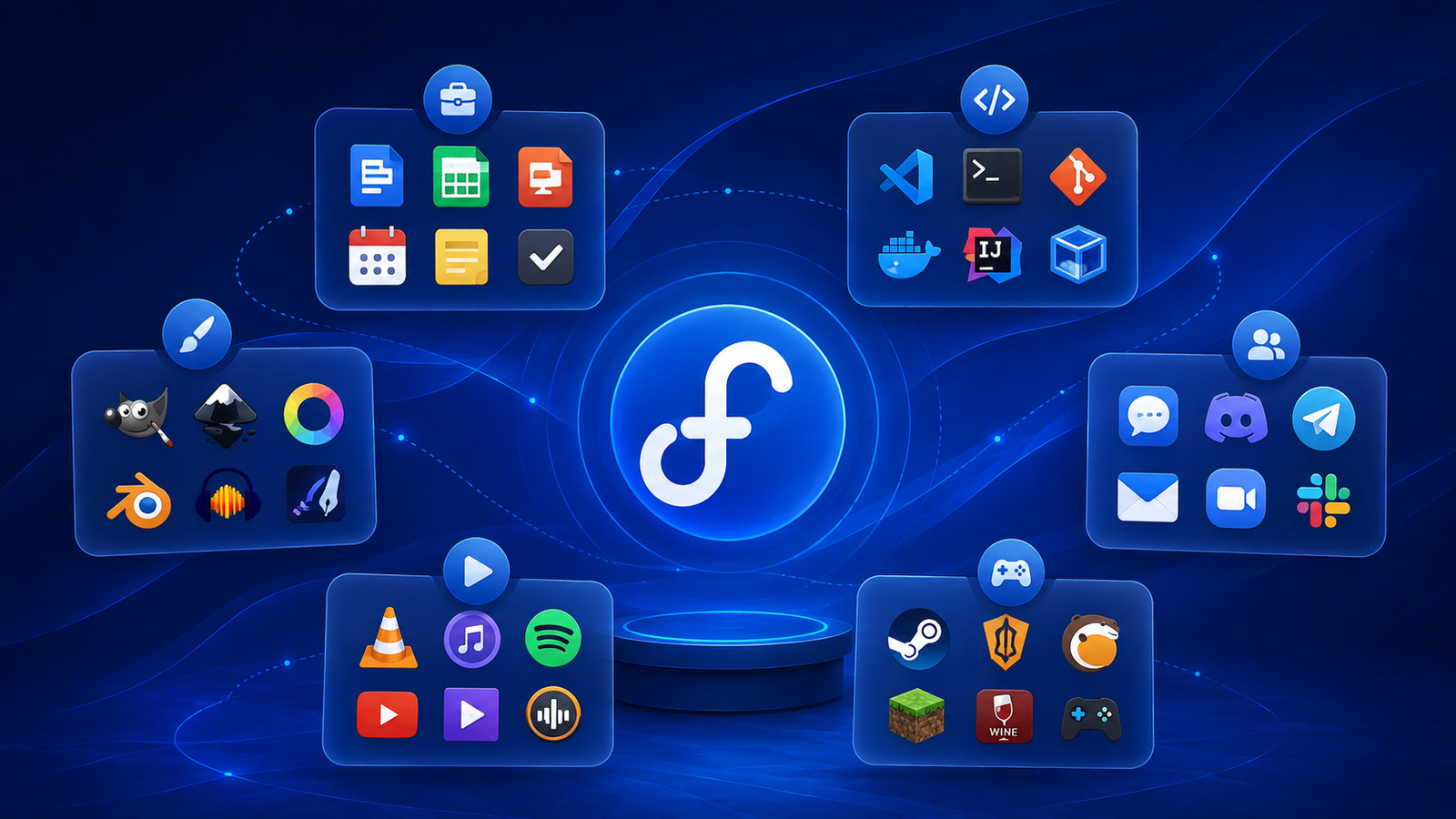
There is no universal list because every user’s workflow is different, but some common categories include:
Web browsers
Fedora Workstation includes Firefox, but you may also want another browser depending on your workflow.
Multimedia
Consider installing a media player if you regularly watch locally stored content.
Office and productivity
An office suite, notes application, PDF tools, password manager, and calendar applications can quickly turn a fresh Fedora installation into a productive workstation.
Creative software
Fedora and Flathub provide excellent applications for:
- photo editing;
- digital painting;
- 3D modeling;
- video editing;
- audio production.
Development tools
Developers will probably want Git:
sudo dnf install gitYou may also want compilers, editors, containers, SDKs, or language-specific development environments.
To search Fedora’s repositories:
dnf search package-nameTo install a package:
sudo dnf install package-nameFor Flatpak applications:
flatpak search application-nameWhenever possible, install applications through Fedora’s repositories or a trusted Flatpak remote instead of downloading random installation scripts from websites.
8. Set Up Backups Now, Not Later
A fresh installation is the perfect time to create a backup strategy.
Do not wait until a disk fails or an important document is accidentally deleted.
At minimum, make sure important folders such as these exist in your backup:
- Documents;
- Pictures;
- Videos;
- development projects;
- SSH keys;
- configuration files;
- work-related files;
- other irreplaceable personal data.
Your backup destination could be:
- an external SSD;
- an external hard drive;
- a NAS;
- another computer;
- encrypted cloud storage.
For particularly important files, keep more than one backup copy.
A synchronized folder is also not necessarily a complete backup. If a file is accidentally deleted and that deletion synchronizes everywhere, you may still lose the file unless the service provides version history.
If your Fedora machine contains important data, automate your backups so you do not have to remember to run them manually.
9. Customize GNOME 50
Fedora Workstation 44 includes GNOME 50.
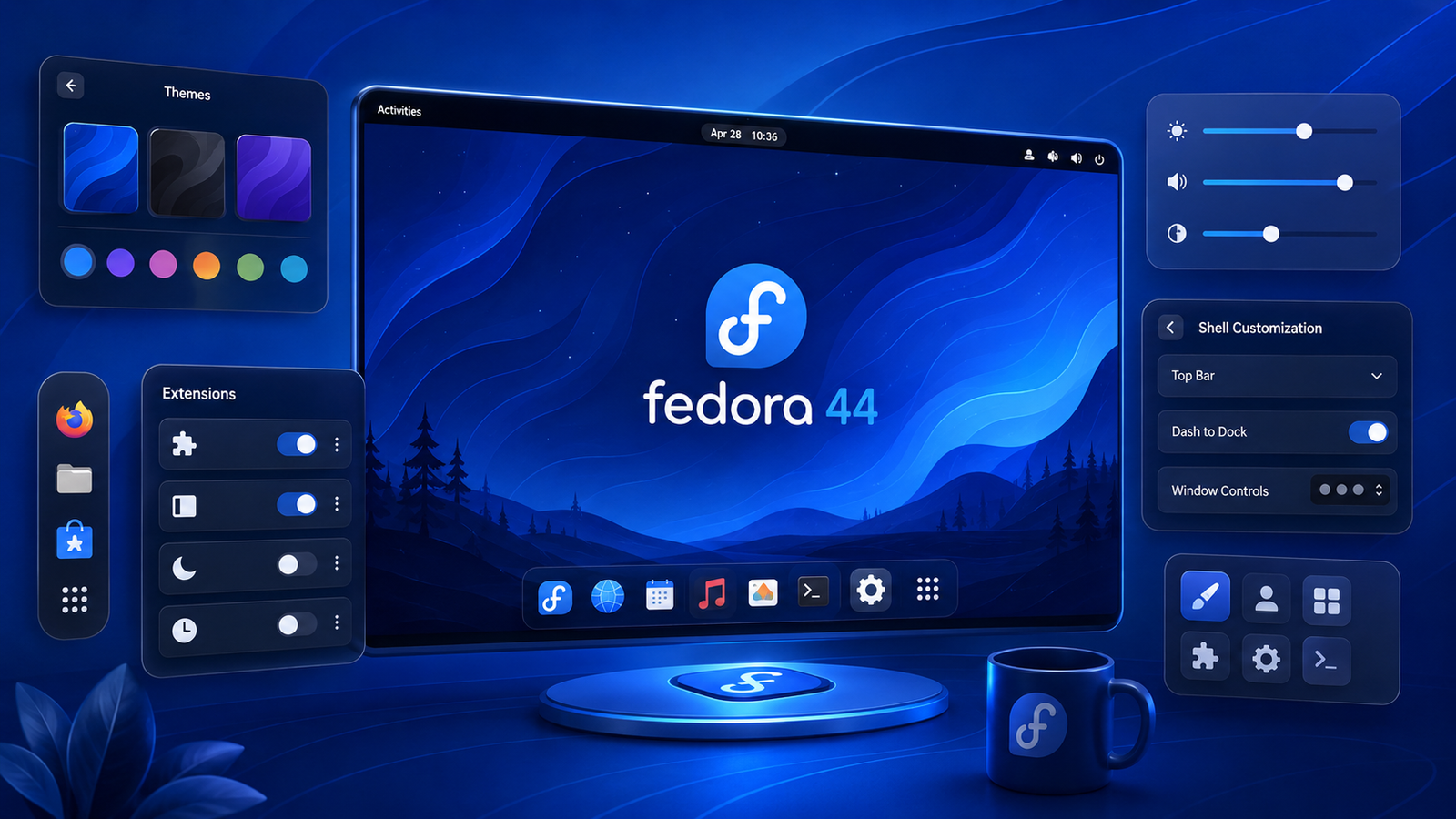
Before installing dozens of customization utilities, explore the options already available under Settings.
You can configure things such as:
- display scaling;
- dark and light appearance;
- keyboard shortcuts;
- mouse and touchpad behavior;
- power settings;
- notifications;
- online accounts;
- privacy;
- accessibility options.
If you want more control over the GNOME desktop, you can also install GNOME Shell extensions.
Fedora describes GNOME Shell extensions as third-party pieces of code that modify the way GNOME behaves.
Extensions can add features such as:
- application indicators;
- dock customization;
- additional panel information;
- window-management features;
- workspace tweaks;
- productivity shortcuts.
The important thing is not to install extensions simply because they exist.
Start with GNOME’s default workflow and add extensions only when they solve a specific problem. Fewer extensions generally also means fewer potential compatibility problems after major GNOME updates.
10. Check Fedora’s Security Settings
Fedora ships with strong security defaults, and one of the most important post-installation rules is not to disable those protections without a good reason.
Check the firewall
Fedora installs firewalld by default.
You can check its status with:
systemctl status firewalldYou can also see your active firewall zones with:
firewall-cmd --get-active-zonesFor a normal desktop user, Fedora’s default firewall configuration is usually a good starting point.
Leave SELinux enabled
Fedora also enables SELinux enforcing mode by default.
Check its current status with:
getenforceA normal Fedora installation should return:
EnforcingYou will occasionally find online tutorials that suggest disabling SELinux when an application does not work.
Avoid doing that as a first solution.
If SELinux blocks something, determine why it is being blocked and fix the underlying configuration instead of permanently disabling an important system security layer.
Use a strong account password
Your main Fedora user can execute administrative commands through sudo, so choose a strong password and keep the account secure.
On laptops containing sensitive information, full-disk encryption is also highly recommended.
Bonus: Consider Automatic Updates
If you prefer not to check for updates manually, Fedora supports automatic updates using dnf-automatic. Fedora documents this as an available method for downloading and installing package updates automatically.
Whether automatic installation is right for you depends on your machine.
For a personal workstation, some users prefer seeing updates before they are installed. Others prefer automatic security and package updates.
Whichever approach you choose, the important part is to keep Fedora regularly updated.
Fedora 44 Post-Install Checklist
After completing the steps above, your Fedora installation should be ready for everyday use.
Use this quick checklist to make sure you haven’t missed anything:
- Update Fedora with
dnf upgrade --refresh - Reboot after major system updates
- Enable RPM Fusion if you need additional software
- Install multimedia codecs
- Enable Flathub
- Install NVIDIA drivers if required
- Check for firmware updates
- Install your essential applications
- Configure regular backups
- Customize GNOME 50
- Confirm firewalld is running
- Keep SELinux in enforcing mode
Final Thoughts
Fedora Linux 44 does not need dozens of tweaks to become a great desktop operating system.
The default installation is already clean, secure, and highly usable. The purpose of a good Fedora post-install setup is not to change everything—it is to add the things Fedora cannot include by default and configure the system for your own workflow.
Start by updating the system. Then add RPM Fusion and Flathub if you need them, make sure multimedia and hardware are working properly, install your favorite applications, and configure backups before you begin storing important data.
Fedora Workstation 44 combines Fedora’s rapidly updated Linux platform with GNOME 50 and a modern collection of desktop applications.
Once these post-installation steps are complete, you should have a Fedora system that is ready for everyday browsing, productivity, development, multimedia, or gaming.
What do you normally install or configure first after installing Fedora? Share your favorite Fedora post-install tweaks in the comments.