
Ubuntu 26.04 LTS “Resolute Raccoon” is the latest Long-Term Support release of Ubuntu. Released on April 23, 2026, it receives standard security updates and critical bug fixes for five years, through April 2031.
It also brings a refreshed desktop powered by GNOME 50, improved application permissions, Ubuntu Insights controls, the new Resources system-monitoring app, and numerous security and usability improvements.
Ubuntu works well immediately after installation, but there are still a few things worth configuring before you start using it every day.
Here are 10 things to do after installing Ubuntu 26.04 LTS.
1. Update Your Ubuntu System
The first thing you should do after installing Ubuntu 26.04 is update the system.
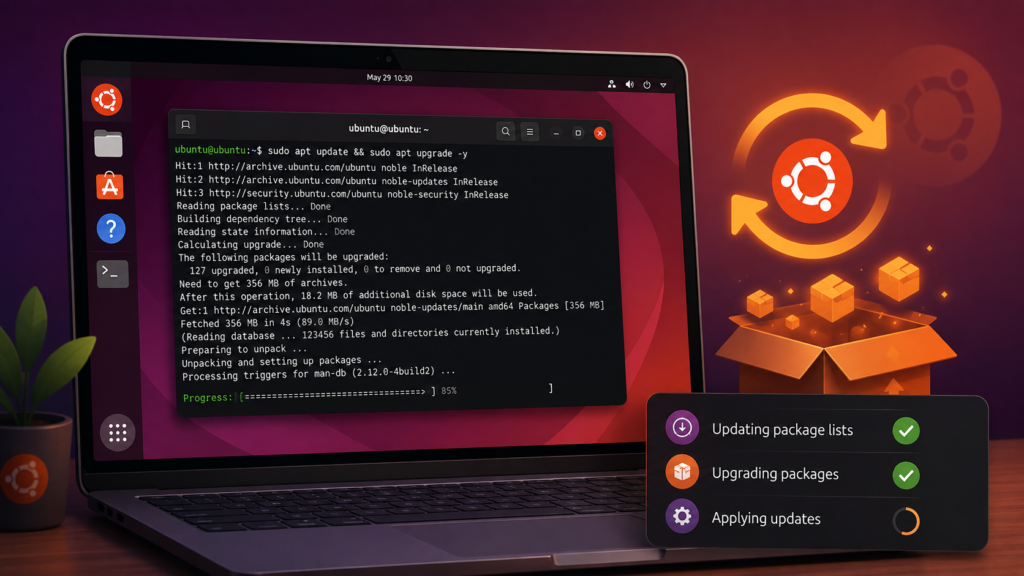
Even if you downloaded a recent ISO image, new security patches, bug fixes, application updates, and driver packages may have become available since the installation image was created.
Open the Terminal and run:
sudo apt update
sudo apt full-upgrade
The first command refreshes Ubuntu’s package information, while the second installs available upgrades.
Afterward, you can remove packages that are no longer required:
sudo apt autoremoveIf the update installs a new kernel or other major system components, restarting the computer is a good idea:
sudo rebootKeeping Ubuntu updated is one of the easiest ways to improve both security and stability.
2. Check Drivers and Firmware
Ubuntu automatically detects most hardware during installation, but it is still worth checking whether additional drivers are available.
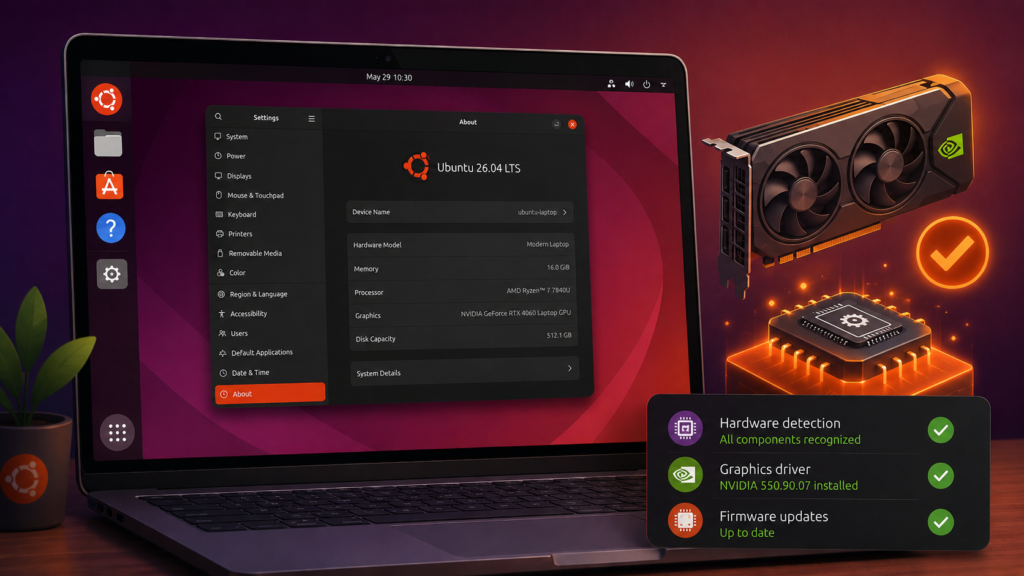
This is particularly important if your computer uses an NVIDIA graphics card, Wi-Fi hardware that requires additional firmware, or other proprietary devices.
Open:
Software & Updates → Additional Drivers
Ubuntu will scan your computer and display any compatible proprietary drivers.
If several NVIDIA drivers are available and you are unsure which one to choose, the driver marked as recommended is generally the safest starting point.
You should also check your system firmware.
Run:
sudo fwupdmgr refresh
fwupdmgr get-updates
sudo fwupdmgr update
On supported hardware, firmware updates can include fixes for your laptop’s BIOS/UEFI, SSD, docking station, security hardware, and other components.
For laptops, keep the computer connected to AC power while applying firmware updates.
3. Install Multimedia Codecs
A fresh Ubuntu installation may not include every proprietary multimedia codec because of licensing and patent restrictions in different countries.
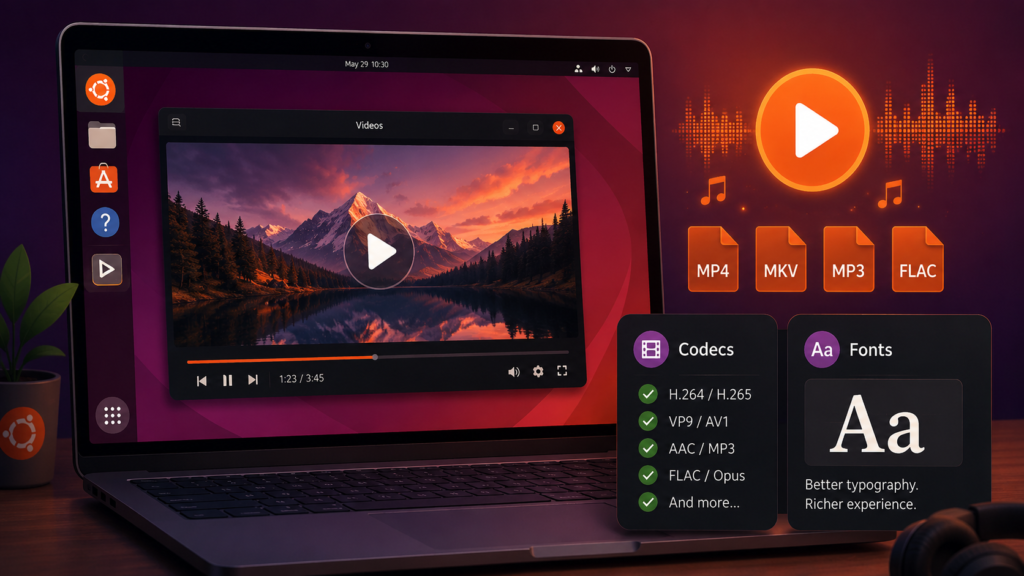
If you regularly play MP3 files, watch videos, use common Microsoft fonts, or work with different media formats, you may want to install Ubuntu’s restricted extras package.
Run:
sudo apt install ubuntu-restricted-extrasDuring installation, you may be asked to accept a license agreement for Microsoft fonts.
Use the Tab key to highlight the appropriate option and press Enter.
After installing the multimedia extras, Ubuntu should be able to handle a wider selection of common audio and video formats.
Keep in mind that codec and software-patent rules differ by country, so make sure the packages you install are permitted where you live.
4. Choose How You Want to Install Applications
One of Linux’s strengths is that there are several ways to install software.
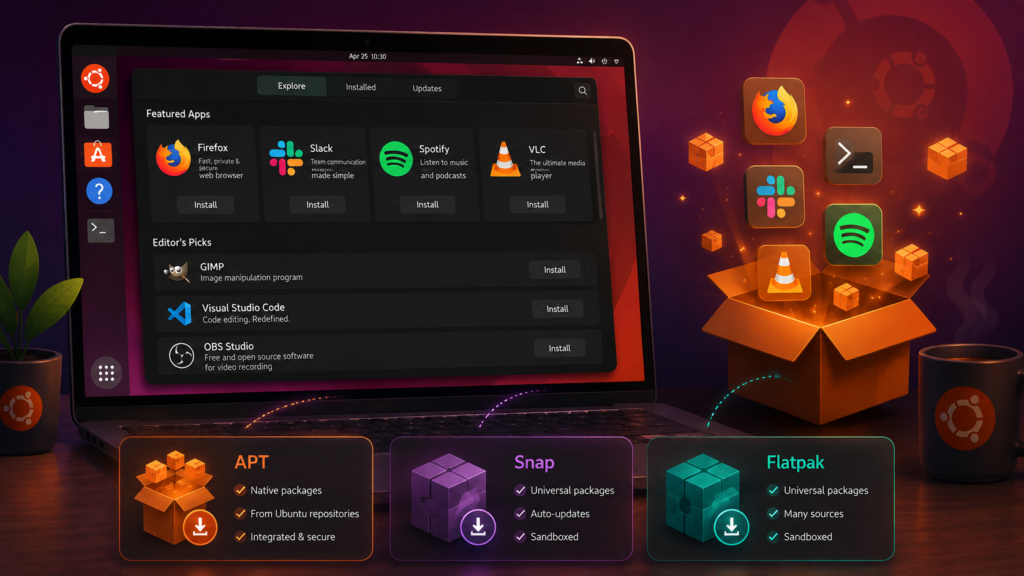
On Ubuntu 26.04, you will mainly encounter APT packages and Snap packages, while Flatpak can also be installed if you want access to applications distributed through services such as Flathub.
Install applications with APT
APT installs traditional packages from Ubuntu’s repositories.
For example:
sudo apt install vlcYou can search for packages with:
apt search package-nameInstall Snap applications
Ubuntu also includes Snap support.
For example:
sudo snap install application-nameInstall Flatpak
Flatpak is optional.
If you want it, install it with:
sudo apt install flatpakIf you also want to use Flathub:
flatpak remote-add --if-not-exists flathub https://flathub.org/repo/flathub.flatpakrepoThere is no requirement to use all three formats.
For most users, Ubuntu’s normal repositories and built-in application management are enough. Add Flatpak only if there are applications you specifically want from that ecosystem.
5. Enable the UFW Firewall
Ubuntu includes UFW, short for Uncomplicated Firewall.
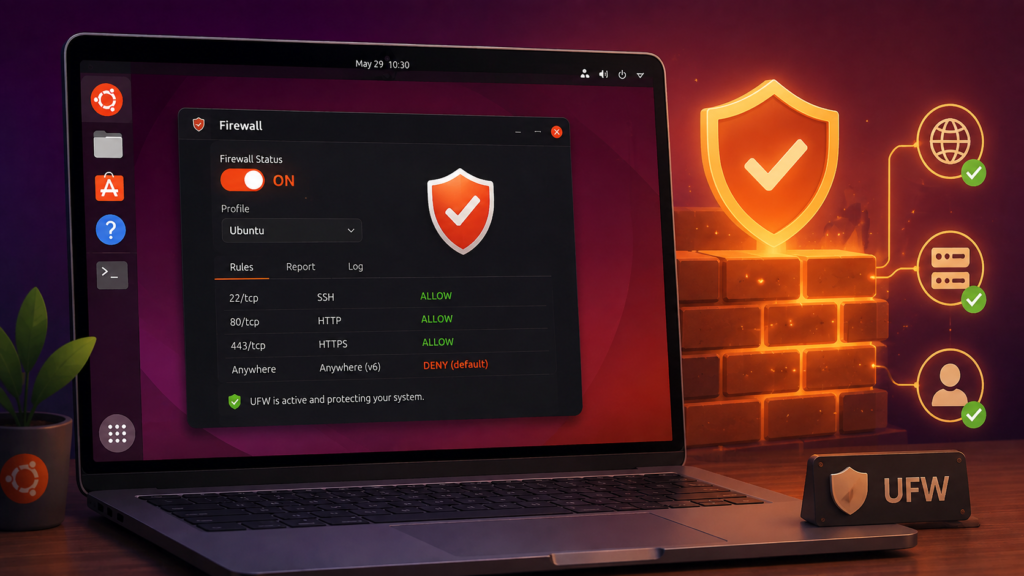
According to Ubuntu’s security documentation, UFW is available by default as Ubuntu’s simplified firewall configuration tool, but it starts disabled.
For a typical desktop or laptop, you can enable it with:
sudo ufw enableCheck its status with:
sudo ufw status verboseYou should see something similar to:
Status: activeIf you use SSH, allow it before enabling restrictive firewall rules:
sudo ufw allow OpenSSHYou can view existing rules with:
sudo ufw status numberedFor most normal desktop users, you do not need to create a complicated firewall configuration.
The important rule is simple: only open network services that you actually need.
If your computer is acting as a web server, development server, game server, or remote-access machine, configure the necessary ports carefully.
6. Set Up Backups
Do not wait until you lose a file before thinking about backups.
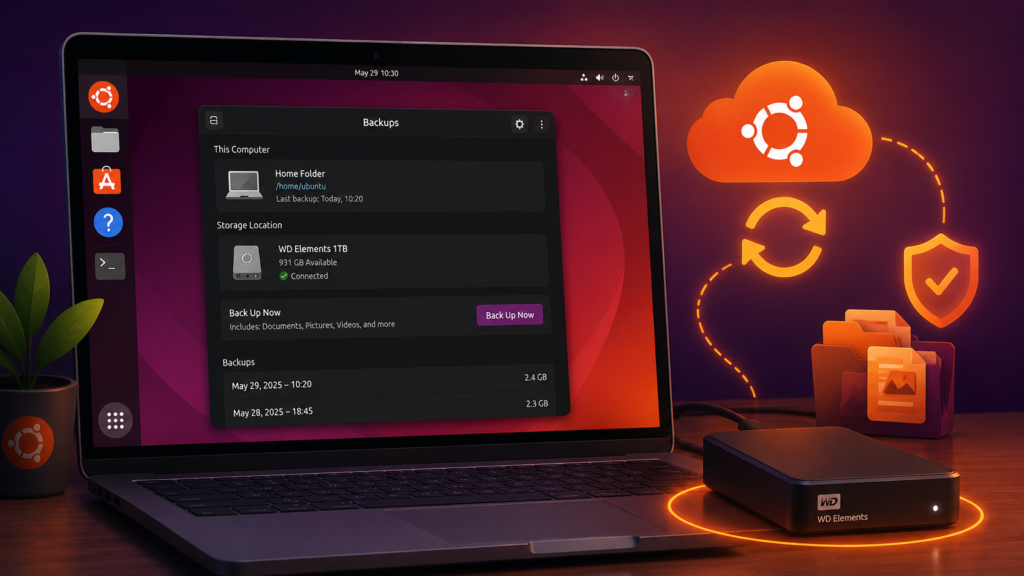
A new Ubuntu installation is the perfect time to establish a backup routine.
At minimum, consider backing up:
- Documents
- Photos
- Videos
- Work projects
- Source code
- SSH keys
- Important configuration files
- Browser data that is not synchronized elsewhere
- Password database files
- Anything that would be difficult to recreate
An external SSD or hard drive is an excellent starting point.
For especially important files, consider keeping another encrypted copy in a cloud service or at a different physical location.
A useful approach is the 3-2-1 backup rule:
- Keep 3 copies of important data.
- Store them on 2 different types of media.
- Keep 1 copy off-site.
And remember: synchronization is not necessarily a backup.
If a synchronized file gets deleted or corrupted, that change can sometimes be synchronized to your other devices as well.
Most importantly, test your backup occasionally by restoring a few files.
A backup you cannot restore is not very useful.
7. Review Privacy and Ubuntu Insights Settings
Ubuntu 26.04 includes additional graphical controls for Ubuntu Insights, giving users more control over the non-personally identifying system metrics they choose to share with Canonical. Ubuntu describes Insights metrics collection as opt-in.
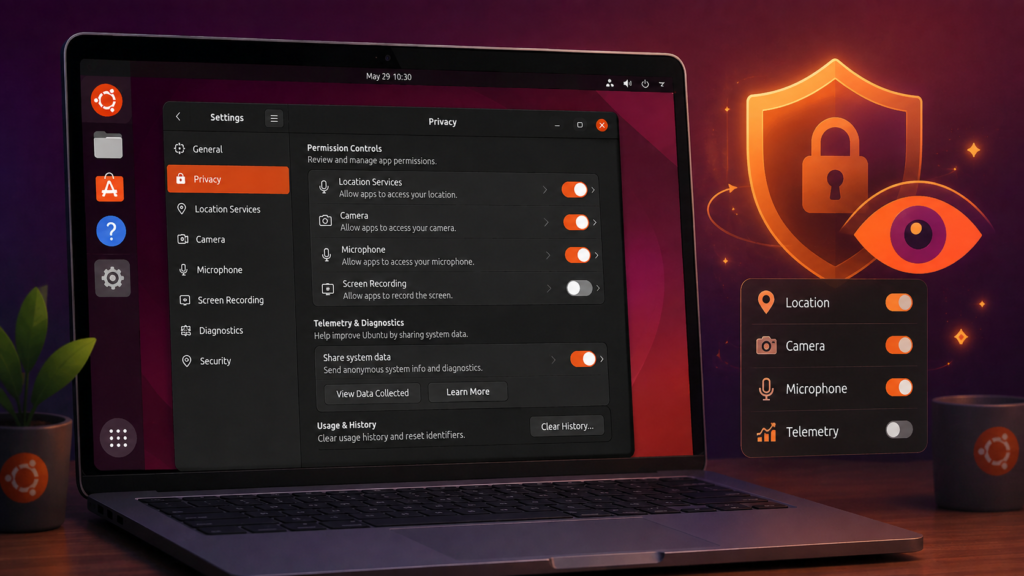
Open:
Settings → Privacy & Security
Review the available privacy controls on your system.
Depending on your installation and applications, these can include:
- Location access
- Camera access
- Microphone access
- Screen recording
- Application permissions
- Telemetry
- Screen locking
- Usage and history settings
There is no universal configuration that is perfect for everyone.
For example, a video-conferencing application legitimately needs access to your camera and microphone, while an unrelated application probably does not.
The important thing is to know which permissions are enabled instead of leaving everything unchecked indefinitely.
This is particularly useful after installing new applications.
8. Customize the GNOME 50 Desktop
Ubuntu 26.04 ships with GNOME 50, bringing desktop improvements compared with previous Ubuntu LTS releases.
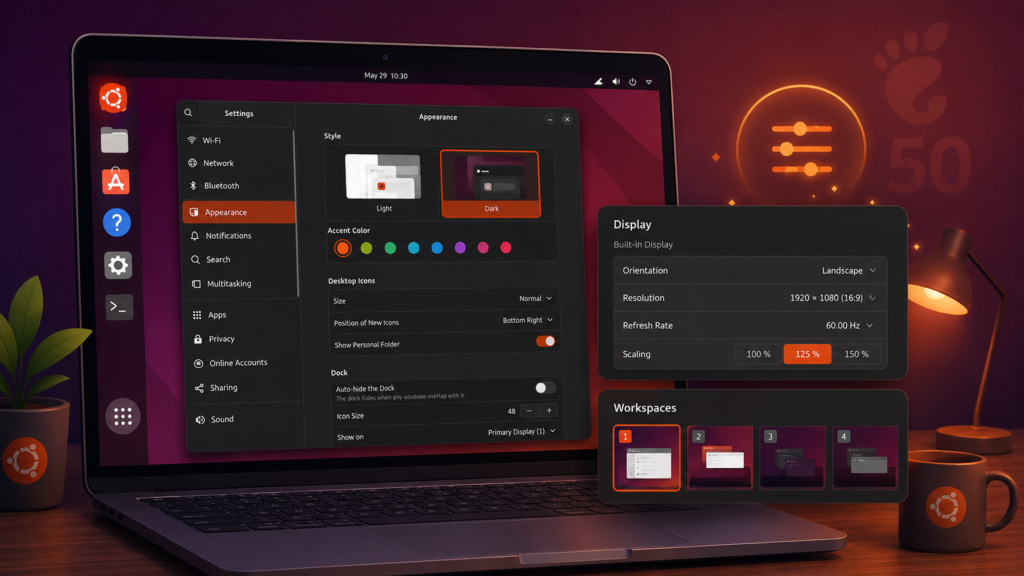
You can customize many aspects of the desktop without installing anything extra.
Open Settings and explore the available options.
Useful settings include:
Appearance
Choose between light and dark themes and select your preferred accent color.
Dock
Adjust the Ubuntu Dock’s position, size, and auto-hide behavior.
Displays
Check your resolution, refresh rate, orientation, and display scaling.
This is particularly useful on high-DPI laptop screens and 4K monitors.
Night Light
Night Light reduces the amount of blue light produced by the display during the evening.
Keyboard shortcuts
Creating shortcuts for applications you use frequently can significantly improve your workflow.
Accessibility
GNOME 50 includes accessibility improvements, making the desktop more adaptable to different users and devices.
One piece of advice: avoid installing dozens of GNOME extensions immediately.
Use Ubuntu for a few days first. Then install extensions only when you find a specific feature that would genuinely improve your workflow.
You will end up with a cleaner and more reliable desktop.
9. Configure Power and Laptop Settings
If you installed Ubuntu 26.04 on a laptop, spend a few minutes reviewing its power configuration.
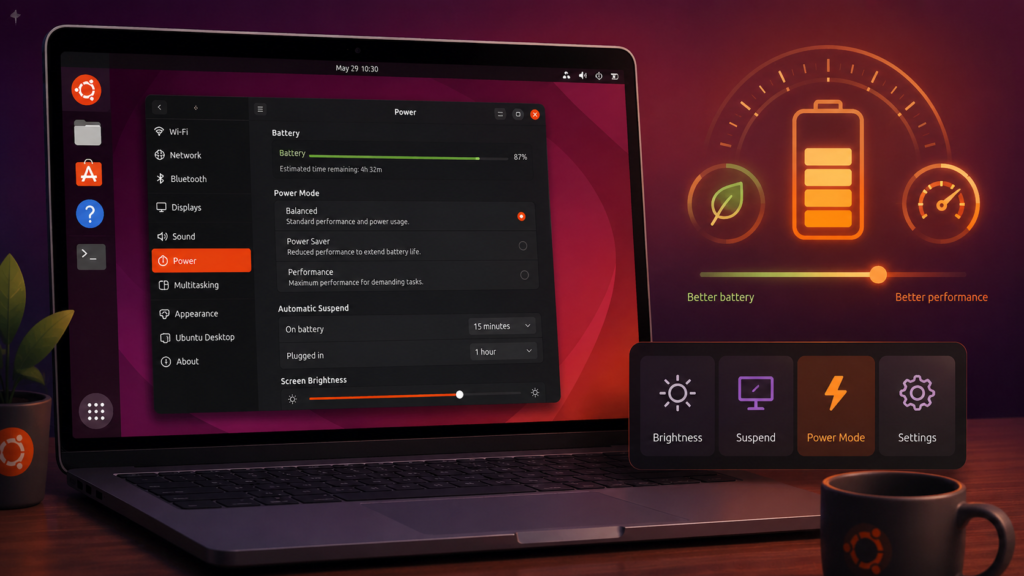
Open:
Settings → Power
Depending on your hardware, you may see different power profiles.
These commonly allow you to choose between better battery life and higher performance.
You should also check:
- Automatic suspend
- Screen blank timeout
- Screen brightness
- Battery percentage
- Bluetooth
- Keyboard backlight
- Power mode
- Lid-close behavior
- Night Light
A performance-oriented configuration may make sense when the laptop is plugged in, while a more conservative profile can extend battery life when you are traveling.
Desktop users should review these settings too.
Automatically turning off the screen or suspending an unused computer reduces unnecessary power consumption.
I also recommend avoiding the immediate installation of multiple third-party power-management utilities.
If several applications are trying to control the CPU, device power states, and power profiles simultaneously, troubleshooting can become more difficult.
Start with Ubuntu’s built-in tools and add something else only if you have a specific problem that the standard settings cannot solve.
10. Get Familiar With the Resources App
Ubuntu 26.04 includes Resources as the system resource-monitoring application in the default GNOME environment, replacing GNOME System Monitor and Power Statistics.
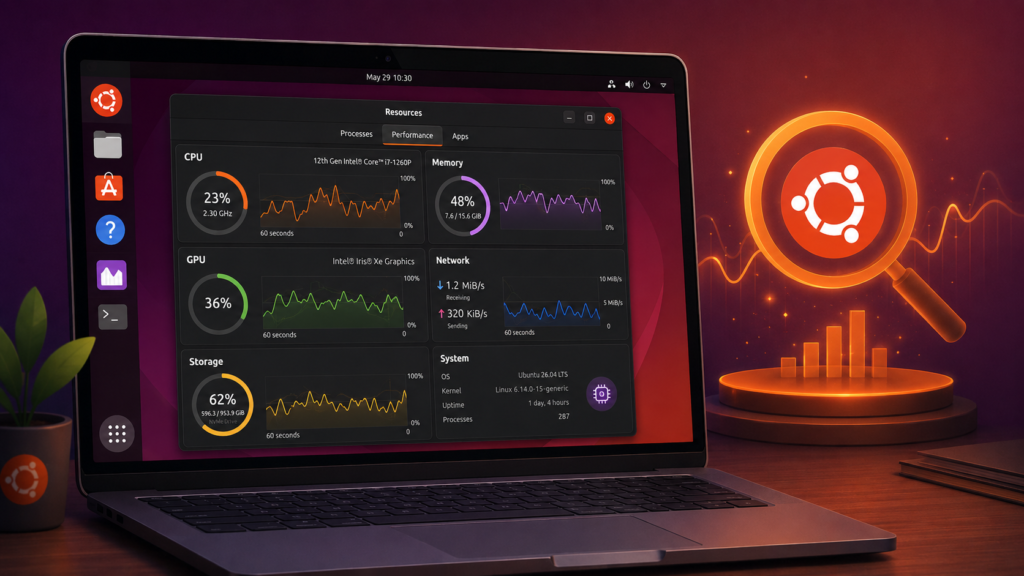
It is one of the applications worth learning after setting up your new system.
Resources lets you monitor areas including:
- CPU usage
- Memory usage
- GPU activity
- Network activity
- Storage activity
- Power usage
- Applications and processes
Ubuntu’s release documentation also highlights enhancements such as grouped application processes and GPU monitoring, including video encoder and decoder usage.
Open Resources while your computer is mostly idle and look at the normal CPU, RAM, GPU, and network activity.
Then open a browser, play a video, or launch a demanding application and see how those numbers change.
Understanding what normal activity looks like makes it much easier to diagnose a slow computer later.
You can also get basic system information from the Terminal.
Check your Ubuntu release with:
lsb_release -aCheck the currently running kernel with:
uname -rCheck memory usage with:
free -hAnd check available disk space with:
df -hThese simple commands are extremely useful when troubleshooting Linux systems.
Bonus: Essential Ubuntu 26.04 Post-Install Commands
If you want a quick reference, here are some of the commands covered in this guide:
# Update Ubuntu
sudo apt update
sudo apt full-upgrade

# Remove unnecessary packages
sudo apt autoremove

# Check firmware
sudo fwupdmgr refresh
fwupdmgr get-updates

# Install multimedia extras
sudo apt install ubuntu-restricted-extras

# Install Flatpak — optional
sudo apt install flatpak

# Enable the firewall
sudo ufw enable

# Check firewall status
sudo ufw status verbose

# Check Ubuntu version
lsb_release -a

# Check kernel
uname -r

# Check memory
free -h

# Check storage
df -h
A Word of Caution About Terminal Commands
Never copy commands from an unknown website and run them blindly.
This is especially important when a command starts with:
sudosudo gives the command administrator privileges.
Before running an unfamiliar command, take a moment to understand what it changes.
Final Thoughts
Ubuntu 26.04 LTS already provides an excellent desktop experience immediately after installation.
You do not need hundreds of tweaks, complicated optimization scripts, or dozens of extensions to make it usable.
A better approach is to establish a solid foundation:
- Update Ubuntu
- Check drivers and firmware
- Install the multimedia support you need
- Choose your application sources
- Enable basic firewall protection
- Create a backup strategy
- Review your privacy settings
- Customize GNOME
- Configure power management
- Learn how to monitor system resources
Once these steps are complete, your Ubuntu 26.04 installation should be in great shape for everyday work, programming, studying, content creation, gaming, or general desktop use.
The best Linux setup is rarely the one with the most tweaks. It is the one that is stable, secure, backed up, and configured for the way you actually work.
Frequently Asked Questions
Is Ubuntu 26.04 an LTS release?
Yes. Ubuntu 26.04 Resolute Raccoon is a Long-Term Support release. Standard security maintenance continues for five years, through April 2031.
When was Ubuntu 26.04 released?
Ubuntu 26.04 LTS was released on April 23, 2026.
What desktop does Ubuntu 26.04 use?
The standard Ubuntu Desktop edition ships with GNOME 50 and uses Wayland.
Should I update Ubuntu immediately after installation?
Yes. Updating immediately ensures you receive fixes and updates released after the installation image was created.
Use:
sudo apt update
sudo apt full-upgrade
Should I install Flatpak on Ubuntu 26.04?
Only if you need it. Ubuntu already provides traditional repository packages and Snap support. Flatpak gives you another software distribution option, but it is not required for a normal Ubuntu installation.
Is the Ubuntu firewall enabled by default?
No. Ubuntu’s UFW firewall configuration tool is available but disabled by default. You can enable it using sudo ufw enable.
What happened to System Monitor in Ubuntu 26.04?
In the default GNOME environment, the newer Resources application replaces System Monitor and Power Statistics. It provides monitoring for CPU, memory, GPU, network, storage, power usage, applications, and processes.