
Installing Linux no longer requires you to understand disk partitions before you begin. Ubuntu, Fedora, Linux Mint, and most other modern distributions can automatically configure a drive and give you a working system with very little input.
For most people, automatic partitioning is the right choice.
Manual partitioning becomes useful when you need more control over where Linux is installed, how much storage it receives, where your personal files live, or how multiple operating systems share the same drive.
The downside is that partitioning is also one of the easiest places to make a destructive mistake during installation.
So, when should you partition Linux manually—and what should the layout actually look like?
This guide covers both.
Before you begin: Back up anything you cannot afford to lose. Deleting, formatting, or recreating the wrong partition can permanently erase data.
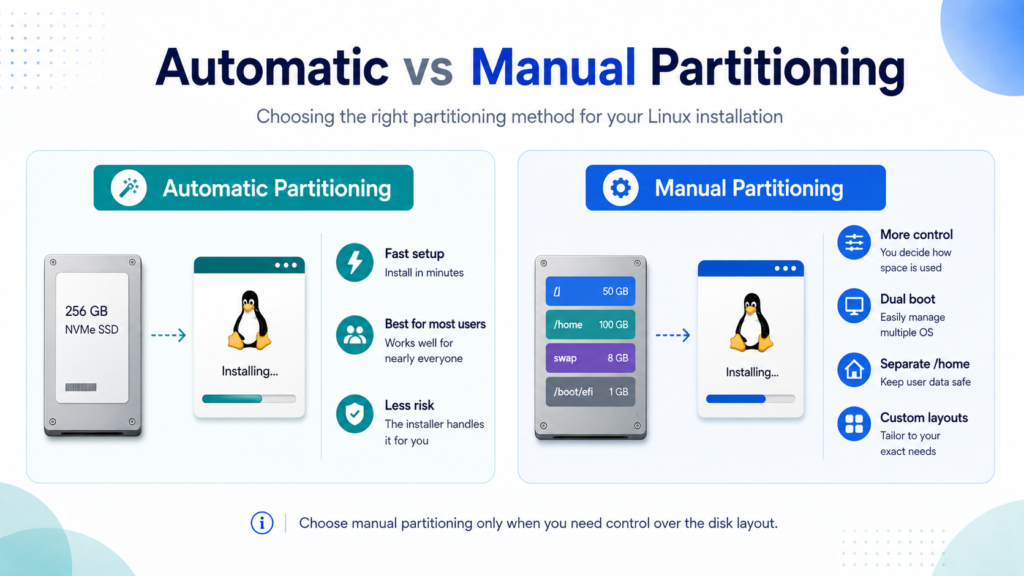
What Is Disk Partitioning?
A physical SSD or hard drive can be divided into multiple logical sections called partitions.
Linux treats each partition as an independent storage area. A partition can have its own filesystem, mount point, and purpose.
A typical Linux desktop might use the following layout:
| Partition | Mount point | Purpose |
|---|---|---|
| EFI System Partition | /boot/efi | Stores UEFI boot files |
| Root partition | / | Contains Linux and installed applications |
| Home partition | /home | Stores personal files and user configuration |
| Swap | None | Provides additional virtual memory |
You do not necessarily need all four.
A normal Linux desktop can work perfectly well with an EFI System Partition and one large root filesystem. Many distributions also configure swap automatically.
That simplicity is one reason automatic partitioning works so well.
Do You Need to Partition Linux Manually?
Usually, no.
If Linux will be the only operating system on your computer and you do not need a special storage layout, the installer can generally make sensible decisions for you.
Manual partitioning is most useful when you have a specific reason for changing the default layout.
Common examples include:
- Dual-booting Linux with Windows or another operating system.
- Keeping
/homeon a separate filesystem. - Reinstalling or testing Linux distributions frequently.
- Creating deliberate storage boundaries on a server.
- Using multiple disks, RAID, LVM, or encryption.
- Controlling exactly how much storage Linux can use.
If none of those requirements apply, automatic partitioning is usually simpler and less error-prone.
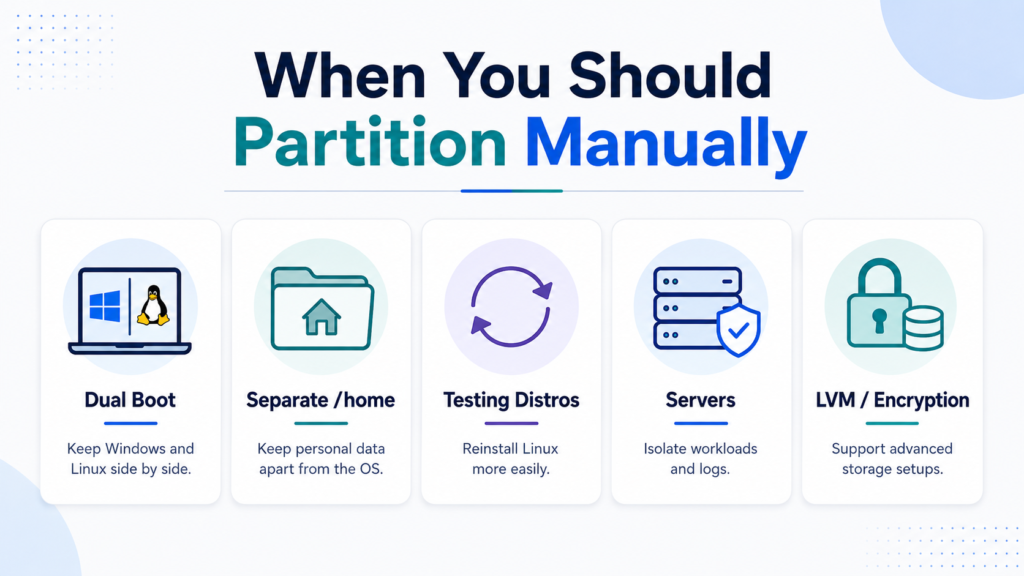
Why Use a Separate /home Partition?
By default, your home directory lives inside the root filesystem:
/
└── home
    └── username
That is completely normal.
You can, however, create a dedicated partition and mount it at:
/homeA system might then look like this:
/dev/nvme0n1p1   /boot/efi
/dev/nvme0n1p2   /
/dev/nvme0n1p3   /home
The main advantage is separation between the operating system and your personal data.
If you reinstall Linux later, you can format the root filesystem while leaving the /home partition intact.
You must still be extremely careful during installation, however. Selecting the wrong format option can erase /home just as easily as any other filesystem.
A separate /home partition is also not a backup. If the SSD fails, your root and home partitions disappear together.
Understanding the Main Linux Partitions
Before manually creating anything, you should understand what each filesystem does.
EFI System Partition
Most modern PCs boot using UEFI firmware.
A conventional UEFI Linux installation uses an EFI System Partition, often abbreviated as ESP.
Linux normally mounts it at:
/boot/efiFor a new drive, around 600 MB to 1 GB is more than enough for a typical desktop.
The partition normally uses FAT32.
A simple configuration looks like this:
Size:        600 MB–1 GB
Filesystem:  FAT32
Mount point: /boot/efi
If Windows is already installed in UEFI mode, your computer probably already has an EFI System Partition.
In that case, Linux can normally use the existing ESP.
Important: Using an existing EFI System Partition is not the same as formatting it. During a dual-boot installation, make sure the installer is not configured to erase the existing ESP unless you deliberately intend to remove its contents.
Root: /
The root filesystem contains Linux itself.
Its mount point is:
/Directories such as /etc, /usr, /var, and /opt normally live inside it unless you deliberately create additional filesystems.
For a typical desktop with a separate /home, 80–120 GB is a comfortable starting point.
If you install large development environments, container images, virtual machines, Flatpaks, games, or other storage-heavy software, allocating more space is sensible.
If you are not creating a separate /home, simply give the root filesystem most of the available disk space.
Home: /home
The home filesystem stores user data such as documents, downloads, photographs, configuration files, application settings, and other personal content.
Its mount point is:
/homeWhen using separate root and home filesystems, a simple strategy is to allocate enough space to / for Linux and applications, then give most of the remaining storage to /home.
Swap
Swap is storage that Linux can use as part of its memory-management system.
A dedicated swap partition is no longer mandatory for every installation.
Depending on the distribution, Linux may use a swap partition, swap file, compressed RAM, or another configuration.
For a normal desktop, allowing the distribution to configure swap automatically is often the easiest approach.
If you specifically need a swap partition—particularly for a carefully planned hibernation setup—you can create one manually.
Avoid blindly following old rules such as “swap must always be twice the size of RAM.” Appropriate swap capacity depends on the system, workload, memory size, and hibernation requirements.
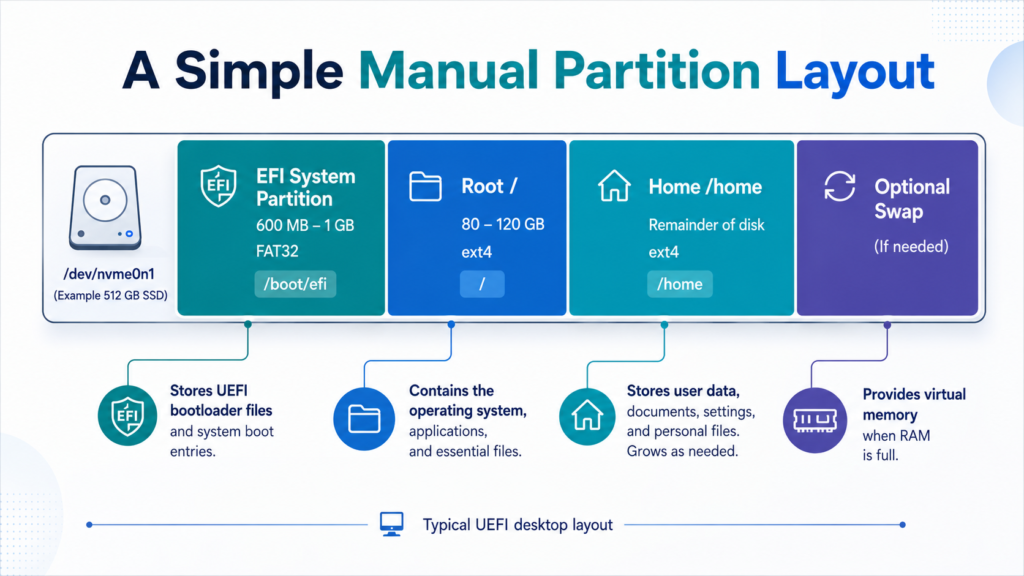
A Sensible Manual Partition Layout
For a typical UEFI desktop, a straightforward layout might be:
| Size | Filesystem | Mount point | Purpose |
| 600 MB–1 GB | FAT32 | /boot/efi | UEFI boot files |
| 80–120 GB | ext4 | / | Linux system and applications |
| Remaining space | ext4 | /home | User data |
| Optional | Swap | — | Swap if specifically required |
This layout is deliberately simple.
You do not need separate partitions for /boot, /var, /tmp, /usr, and every other Linux directory merely because the operating system supports them.
Every additional fixed partition creates another storage limit you may have to manage later.
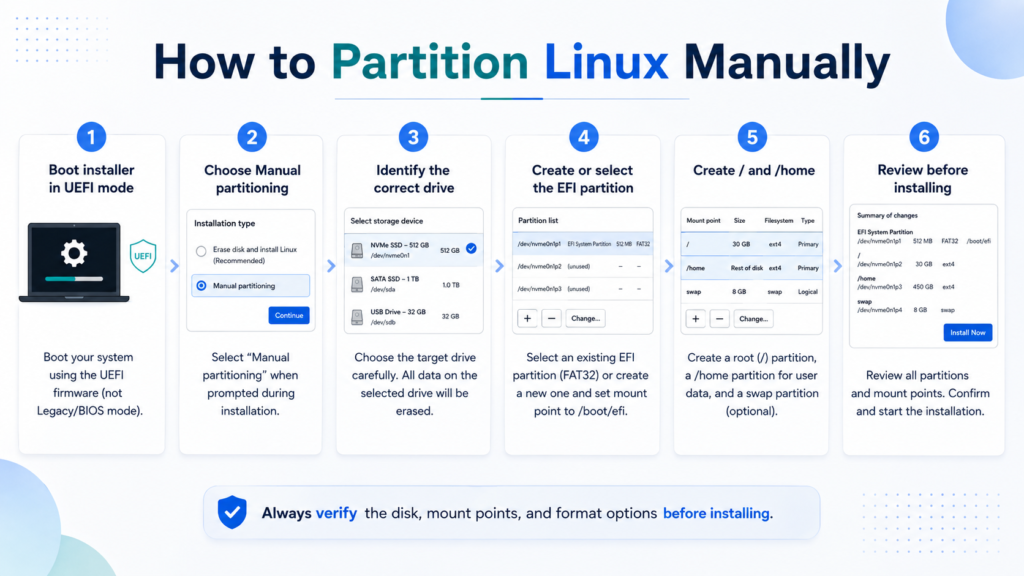
How to Manually Partition Linux During Installation
The exact interface differs between distributions, but the underlying process is usually similar.
The following example assumes a modern computer using UEFI, a GPT disk, and ext4 for the main Linux filesystems.
1. Boot the Installer in UEFI Mode
Start the computer from your Linux installation USB.
If your firmware menu shows separate UEFI and Legacy or CSM entries for the USB drive, select the UEFI entry.
Installing in one boot mode and attempting to start Linux in another can cause unnecessary bootloader problems.
2. Choose Manual Partitioning
Proceed through the installer until you reach the storage or installation-type screen.
Instead of choosing an option such as:
Erase disk and install Linuxselect the manual or custom partitioning option.
The wording varies between distributions.
3. Identify the Correct Drive
This is one of the most important steps.
Linux storage devices may appear as:
/dev/sda
/dev/sdb
/dev/nvme0n1
/dev/nvme1n1
Never identify a disk only by its device name.
Also verify its capacity, manufacturer, model, and existing partitions.
If your computer contains a 1 TB NVMe SSD and a 4 TB hard drive, for example, those capacities can help you confirm which disk you are editing.
4. Create a GPT Partition Table If Necessary
If the target disk is completely new or intentionally blank, you may need to create a partition table.
For a modern UEFI computer, GPT is normally the appropriate choice.
Be careful when using this option.
Creating a new partition table on a disk containing existing data can make those partitions inaccessible.
If you are dual booting or preserving existing data, you usually do not want to replace the existing partition table.
5. Create or Select the EFI System Partition
For a blank UEFI disk, create an EFI System Partition.
A sensible setup is:
Size:        600 MB–1 GB
Filesystem:  FAT32
Mount point: /boot/efi
If the computer already contains an EFI System Partition, you can normally assign it to /boot/efi instead of creating another one.
Make sure you understand whether the installer intends to format it.
6. Create the Root Partition
Next, create the filesystem where Linux itself will be installed.
For example:
Size:        100 GB
Filesystem:  ext4
Mount point: /
Format:      Yes
If you do not want a separate /home, allocate most of the Linux storage to this filesystem.
7. Create /home If You Want It Separate
Use the remaining free space—or whatever portion of it you prefer—to create the home filesystem.
For example:
Filesystem:  ext4
Mount point: /home
Format:      Yes
During a future reinstall where you deliberately want to preserve the existing home filesystem, you would normally assign it to /home without formatting it.
Keep an independent backup regardless.
8. Configure Swap If Necessary
If your installation plan requires a dedicated swap partition, allocate the desired amount of free space and configure its type as:
swapOtherwise, allow your distribution to use its normal swap configuration.
9. Review the Changes Before Installing
Do not rush through the final confirmation screen.
Before starting the installation, verify which physical disk receives Linux, which partitions will be formatted, which filesystems will be preserved, where / and /home are mounted, and which EFI System Partition is being used.
Once formatting begins, correcting a mistake may no longer be possible.
Example: Partitioning a 1 TB SSD
Suppose you have a blank 1 TB SSD and Linux will be the only operating system.
A simple layout could be:
1 TB NVMe SSD
│
├── 1 GB      EFI System Partition     /boot/efi
├── 120 GB    ext4                     /
└── ~879 GB   ext4                     /home
You could also use an even simpler layout:
1 TB NVMe SSD
│
├── 1 GB      EFI System Partition     /boot/efi
└── ~999 GB   ext4                     /
Both are valid.
The first separates your user data from the operating system.
The second eliminates the possibility of accidentally allocating too little space to the root filesystem.
Neither approach is universally better.
Do You Need a Separate /boot Partition?
Do not confuse:
/bootwith:
/boot/efiThey are different.
The EFI System Partition is used by UEFI firmware and is normally mounted at /boot/efi.
A separate Linux /boot filesystem is not necessary for most desktop installations.
You may encounter one in systems using particular encryption, RAID, enterprise, or boot configurations, but there is little reason to create it on a standard desktop unless your distribution or storage design specifically requires it.
ext4 or Btrfs?
If you do not have a specific reason to choose another filesystem, ext4 remains an excellent conservative choice for a manually partitioned Linux desktop.
It is mature, widely supported, and straightforward to manage.
Btrfs becomes attractive when you specifically want features such as snapshots, subvolumes, compression, or rollback-oriented system management.
Some Linux distributions already use Btrfs and carefully designed subvolume layouts by default.
If your distribution does this, its automatic partitioning scheme may be preferable to manually recreating a more complicated version of the same layout.
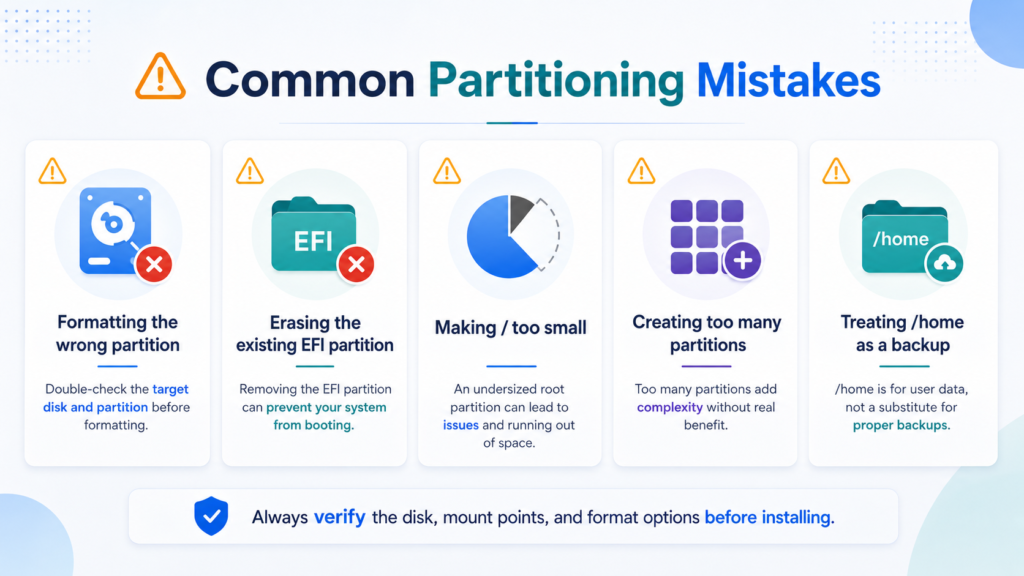
Common Manual Partitioning Mistakes
Formatting the Wrong Partition
Always verify the physical disk, partition size, mount point, and format option before continuing.
This is particularly important on computers containing several drives.
Erasing an Existing EFI System Partition
A shared EFI System Partition may contain boot files for Windows or another operating system.
Mounting it at /boot/efi and formatting it are two very different actions.
Making / Too Small
A root filesystem that looks large immediately after installation can quickly fill when you add development tools, containers, virtual machines, games, Flatpaks, application caches, and other software.
Leave room for growth.
Creating Too Many Partitions
Additional partitions can isolate workloads, but they also introduce fixed storage boundaries.
You can easily end up with a nearly full root filesystem while another partition has hundreds of gigabytes available.
For a normal desktop, simpler is generally easier to manage.
Treating /home as a Backup
A separate home filesystem makes reinstalls more convenient. It does not protect you against disk failure, theft, accidental deletion, malware, or formatting the wrong partition.
Keep important data on another device or backup system.
Check Your Partition Layout After Installation
Once Linux is running, you can inspect the storage layout from a terminal.
To display disks, partitions, filesystems, and mount points:
lsblk -fA manually partitioned system might look similar to:
NAME        FSTYPE  SIZE MOUNTPOINTS
nvme0n1            931G
├─nvme0n1p1 vfat     1G /boot/efi
├─nvme0n1p2 ext4   120G /
└─nvme0n1p3 ext4   810G /home
To identify the root filesystem:
findmnt /To check /home:
findmnt /homeTo display active swap:
swapon --showAnd to check whether the current Linux installation booted using UEFI:
[ -d /sys/firmware/efi ] && echo "UEFI" || echo "Legacy BIOS"Should You Manually Partition Linux?
Manual partitioning is not something every Linux user needs to learn before installing the operating system.
If you are installing Linux as the only operating system on a computer and have no special storage requirements, the automatic layout provided by your distribution will usually be the better option.
Manual partitioning becomes valuable when you need precise control over dual booting, separate filesystems, storage allocation, multiple disks, servers, encryption, LVM, or another advanced configuration.
The important distinction is simple:
Automatic partitioning prioritizes convenience. Manual partitioning prioritizes control.
Neither method makes you more or less of a Linux user.
Choose manual partitioning when you have a reason for designing the disk layout yourself—and when you do, verify every partition before allowing the installer to format anything.