
If you’re looking for a complete beginner’s guide to Linux, you’re in the right place. Linux may seem intimidating at first, especially if you have spent years using Windows or macOS, but modern Linux distributions are easier to use than ever. In this guide, you’ll learn what Linux is, how distributions work, which Linux distro to choose, how to install it, essential terminal commands, software management, security basics, and the skills you should learn next.
You may have heard developers talking about terminals, distributions, package managers, repositories, root users, and strange commands involving sudo. From the outside, it can look as though Linux requires years of technical experience just to get started.
Fortunately, that impression is outdated.
Modern Linux distributions can be surprisingly easy to install and use. You can browse the web, watch videos, edit documents, play games, write code, manage photos, and perform everyday computing tasks without becoming a command-line expert.
At the same time, Linux gives you something Windows and macOS generally do not: an extraordinary amount of control over how your computer works.
This beginner’s guide will take you from knowing almost nothing about Linux to understanding its most important concepts, choosing a distribution, installing software, using the terminal, managing files, keeping your system secure, and knowing where to go next.
What Is Linux?
Linux is an open-source operating system ecosystem used on everything from laptops and desktop computers to servers, smartphones, routers, supercomputers, televisions, and embedded devices.
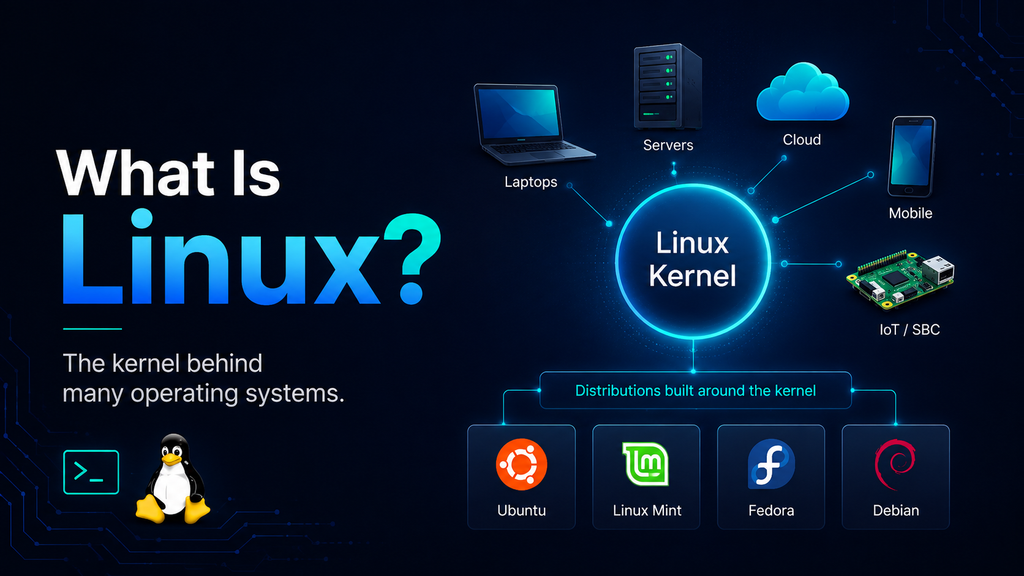
Technically, Linux itself is the kernel.
The kernel is the core part of an operating system that communicates with your computer’s hardware and manages resources such as:
- The processor
- Memory
- Storage devices
- Network connections
- USB devices
- Running applications
What most people casually call “Linux” is actually a complete operating system built around the Linux kernel.
These complete systems are called Linux distributions, or distros.
What Is a Linux Distribution?
Unlike Windows, Linux does not come in one single official desktop edition.
Different organizations and communities combine the Linux kernel with desktop software, utilities, package managers, system tools, and graphical interfaces to create their own distributions.
Some of the best-known Linux distributions include:
- Ubuntu
- Linux Mint
- Fedora
- Debian
- openSUSE
- Pop!_OS
- Arch Linux
- EndeavourOS
Think of Linux as the engine and distributions as different cars built around that engine.
They share many underlying technologies, but their appearance, software choices, update schedules, and target audiences can be very different.
Why Do People Use Linux?
Linux has several advantages that attract everyone from casual home users to professional developers and system administrators.
Linux Is Free
Most Linux distributions can be downloaded and used without purchasing a license.
You can install Linux on one computer or dozens of computers without paying for individual operating system licenses.
Linux Is Open Source
Much of the software that makes up a Linux system is open source.
That means its source code can be inspected, modified, and redistributed according to the licenses under which it is published.
Open-source development allows individuals, companies, universities, and communities around the world to collaborate on Linux.
Linux Gives You More Control
Linux lets you customize almost every part of your computing environment.
Depending on your distribution, you can change:
- Desktop environments
- Window managers
- File managers
- System services
- Themes
- Keyboard shortcuts
- Startup applications
- Software repositories
- Kernels
- Command-line shells
Beginners do not need to modify all of these things, but the flexibility is there when you want it.
Linux Can Run Well on Older Hardware
Some lightweight Linux distributions can breathe new life into computers that struggle with newer versions of Windows.
You can choose lightweight desktop environments and software that consume fewer system resources.
That does not mean every Linux distribution is lightweight, but Linux gives you far more options when dealing with older hardware.
Linux Is Excellent for Programming
Linux is extremely popular among developers.
Many programming tools, web servers, databases, container platforms, and development frameworks either originated on Unix-like systems or work particularly well with them.
Linux is commonly used for:
- Web development
- Python programming
- DevOps
- Cloud computing
- Cybersecurity
- Artificial intelligence
- Data science
- Server administration
- Embedded development
If you want to move into a technical career, learning Linux is an extremely useful skill.
Linux Powers Much of the Internet
A huge number of web servers, cloud platforms, containers, networking systems, and infrastructure services run Linux.
Even if Linux is not currently installed on your laptop, there is a good chance you interact with Linux-powered systems every day.
Is Linux Difficult to Learn?
Linux has a learning curve, but you do not need to learn everything at once.
A modern beginner-friendly Linux desktop provides graphical applications for most common tasks. You can connect to Wi-Fi, install applications, change settings, browse files, and update your computer without opening a terminal.
The command line becomes useful when you want to:
- Troubleshoot problems
- Automate tasks
- Manage servers
- Install certain development tools
- Work more efficiently
- Understand Linux at a deeper level
Think of the terminal as an additional tool rather than something you must master before using Linux.
Linux vs. Windows vs. macOS
All three operating systems can handle everyday computing, but they approach things differently.
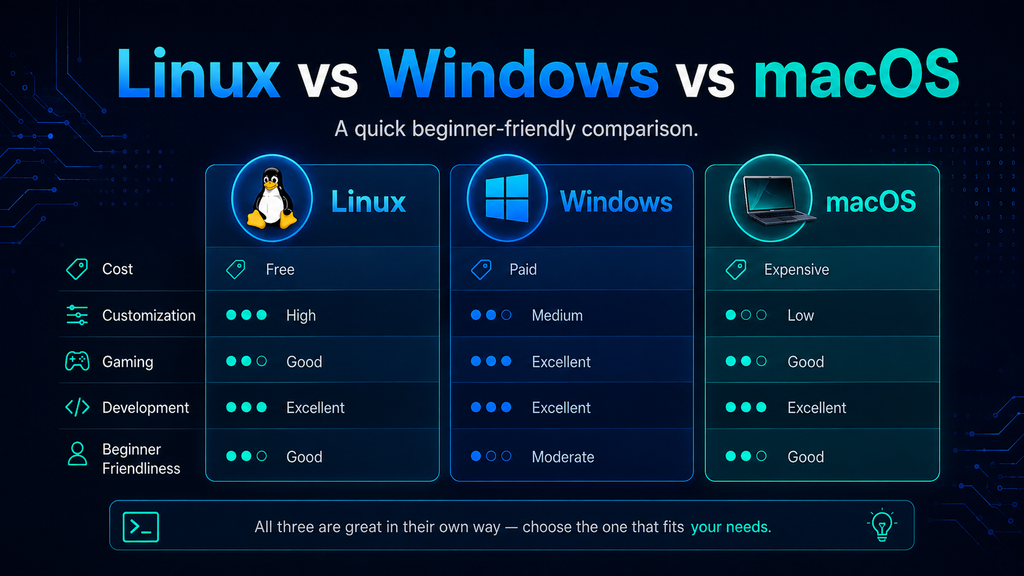
| Feature | Linux | Windows | macOS |
|---|---|---|---|
| Cost | Usually free | Often licensed with PC | Included with Mac |
| Open source | Mostly | Mostly proprietary | Mostly proprietary |
| Hardware choice | Very wide | Very wide | Apple hardware |
| Customization | Extremely high | Moderate | Limited to moderate |
| Gaming | Good and improving | Excellent | More limited |
| Development | Excellent | Excellent | Excellent |
| Server usage | Extremely common | Common | Uncommon |
| Beginner friendliness | Depends on distro | Very beginner-friendly | Very beginner-friendly |
Linux is not automatically better than Windows or macOS.
It is simply a different choice with different strengths.
For someone who values customization, open-source software, programming tools, privacy, system control, or learning how computers work, Linux can be particularly appealing.
Choosing Your First Linux Distribution
One of the first questions beginners encounter is:
Which Linux distribution should I use?
There is no single perfect answer, but beginners usually benefit from choosing a popular distribution with a large community.
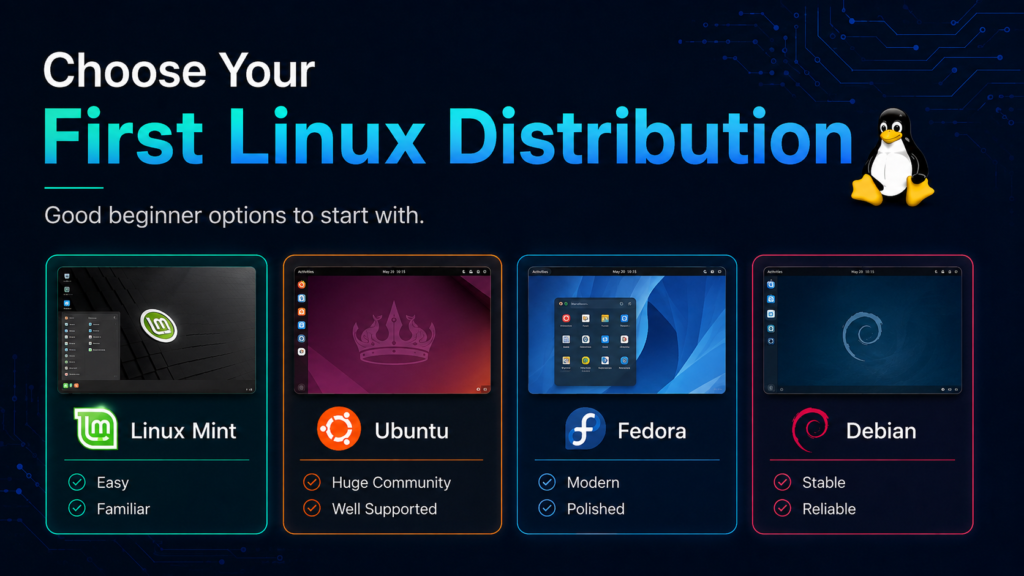
Linux Mint
Linux Mint is one of the easiest recommendations for someone moving from Windows.
Its Cinnamon desktop has a familiar layout with:
- An application menu
- Taskbar
- System tray
- Desktop icons
- Traditional windows
Mint also focuses heavily on providing a comfortable desktop experience.
Best for: Windows users who want an easy transition.
Ubuntu
Ubuntu is one of the world’s most recognizable Linux distributions.
It has a huge user community, extensive documentation, and excellent third-party software support.
Because so many Linux tutorials are written with Ubuntu in mind, beginners can usually find answers to common problems quickly.
Best for: Beginners who want maximum community support.
Fedora Workstation
Fedora provides a polished Linux desktop while adopting newer technologies relatively quickly.
It is also closely associated with the broader ecosystem surrounding Red Hat Enterprise Linux.
Best for: Beginners who want a modern Linux experience or developers interested in enterprise Linux technologies.
Debian
Debian is one of the oldest and most influential Linux distributions.
Many other distributions—including Ubuntu—are based on Debian.
Debian emphasizes stability and free software and works extremely well when configured properly, although some beginners may find distributions such as Linux Mint or Ubuntu slightly easier to start with.
Best for: Users who value stability and want to learn a foundational Linux distribution.
What About Arch Linux?
Arch Linux is extremely popular among experienced Linux enthusiasts, but it usually is not the easiest first distribution.
Arch expects the user to make many decisions themselves and provides a more hands-on installation and maintenance experience.
That can be fantastic for learning, but there is no prize for making your first Linux installation unnecessarily difficult.
Start with something comfortable. You can always explore other distributions later.
What Is a Desktop Environment?
Another unusual Linux concept is the desktop environment.
Windows largely determines what the Windows desktop looks like. macOS does the same.
Linux allows different desktop interfaces to run on top of the operating system.
Popular desktop environments include:
GNOME
GNOME provides a clean, modern interface that emphasizes simplicity.
It does not behave exactly like Windows, which can take some adjustment, but many users appreciate its streamlined workflow.
KDE Plasma
KDE Plasma is extremely customizable and provides a more traditional desktop layout by default.
You can customize almost every visual and functional aspect of the desktop.
Cinnamon
Cinnamon is the flagship desktop environment used by Linux Mint.
Its familiar taskbar-and-menu layout makes it particularly comfortable for people coming from Windows.
Xfce
Xfce is lightweight, fast, and relatively traditional.
It is particularly useful on older or lower-powered computers.
You Can Try Linux Without Installing It
One of Linux’s best beginner-friendly features is the ability to run many distributions directly from a USB drive.
This is called a live environment.
You download the distribution’s ISO image, write it to a USB drive using appropriate software, restart your computer, and boot from the USB device.
Linux then runs temporarily without replacing your existing operating system.
This gives you an opportunity to test things such as:
- Wi-Fi
- Bluetooth
- Sound
- Display resolution
- Keyboard
- Trackpad
- Webcam
- Graphics
- General performance
When you restart the computer and remove the USB drive, your original operating system remains intact.
Trying a live environment is one of the safest ways to find out whether Linux works well with your hardware.
Ways to Install Linux
Once you are ready to go beyond the live environment, you have several options.
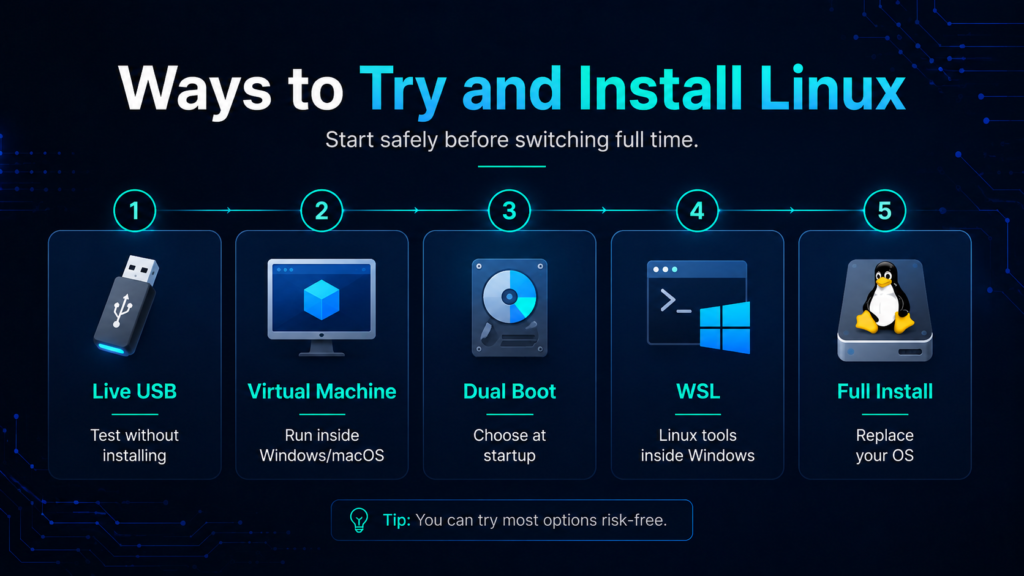
Option 1: Replace Your Existing Operating System
Linux becomes the only operating system installed on the computer.
This provides the cleanest experience but removes your existing operating system and potentially all data on the selected drive.
Always back up important files first.
Option 2: Dual Boot
A dual-boot configuration lets you install Linux alongside another operating system.
When the computer starts, you choose which operating system to launch.
This can be useful if you still need Windows for specific applications or games.
However, dual-boot configurations introduce additional complexity involving disk partitions, bootloaders, encryption, and operating system updates.
Option 3: Use a Virtual Machine
Virtualization software allows Linux to run inside a window on your existing operating system.
A virtual machine is excellent for experimenting because you can learn Linux without changing your computer’s main installation.
The downside is that a virtual machine shares your computer’s resources with the host operating system, so performance may be lower.
Option 4: Use Windows Subsystem for Linux
Windows users interested primarily in Linux command-line tools and development can also use Windows Subsystem for Linux, commonly called WSL.
WSL provides access to a Linux environment from within Windows without requiring a traditional dual-boot installation.
It is particularly useful for programmers.
Before Installing Linux: Back Up Your Files
Never treat an operating system installation as risk-free.
Before resizing partitions, formatting disks, dual booting, or replacing an existing operating system, make sure anything important exists somewhere else.
Back up:
- Documents
- Photos
- Videos
- Password databases
- Browser data
- Project files
- Game saves
- Encryption recovery keys
- Anything else you cannot easily replace
Ideally, keep at least one backup on a separate physical device or trusted backup service.
Understanding the Linux File System
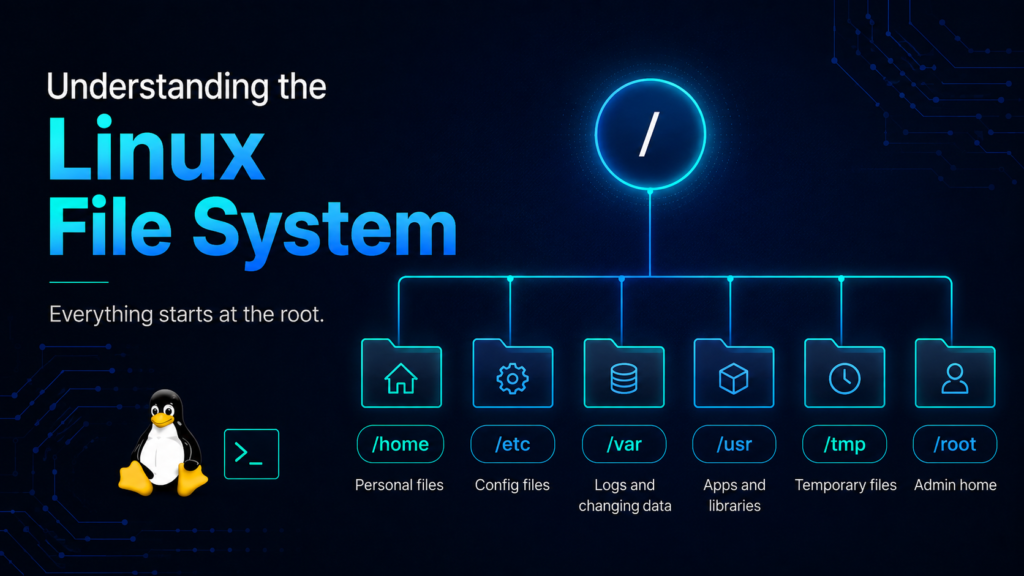
Windows users are familiar with paths such as:
C:\Users\Alex\Documents
Linux uses a different structure.
Instead of drive letters, Linux organizes everything underneath a single root directory:
/
Some important directories include:
/home
Contains users’ personal files.
A user named alex, for example, would usually have a home directory similar to:
/home/alex
Your documents, downloads, pictures, configuration files, and other personal data usually live somewhere inside your home directory.
/etc
Stores system-wide configuration files.
/var
Contains variable data such as logs, caches, queues, and application data.
/usr
Contains many applications, libraries, and shared resources.
/tmp
Used for temporary files.
/root
The home directory belonging to the root administrator account.
Do not confuse /root with /.
The first is a directory. The second is the top level of the entire filesystem.
Linux Is Case-Sensitive
This surprises many new users.
On most Linux filesystems:
photo.jpg
and:
Photo.jpg
are two different filenames.
The same principle applies to directories and commands.
If a command appears correct but Linux says something does not exist, capitalization is worth checking.
Understanding Users and Root
Linux was designed as a multi-user operating system.
Every user can have their own:
- Files
- Settings
- Permissions
- Applications
- Processes
The most powerful account is called root.
Root has administrative control over the entire system.
Because unrestricted administrative access is dangerous, desktop Linux distributions normally encourage users to perform everyday work using a regular account.
When administrator privileges are required, you may see the command:
sudo
For example:
sudo apt update
sudo allows an authorized user to run a command with elevated privileges.
You should not blindly copy commands containing sudo from random websites. A command executed with administrative privileges can make significant changes to your system.
The Linux Terminal
The terminal is one of the most recognizable parts of Linux.
It provides a text-based interface through which you can run commands.
A terminal prompt might look similar to:
alex@computer:~$
You type a command and press Enter.
For example:
pwd
The pwd command prints your current directory.
If you are in your home directory, you might see:
/home/alex
Essential Linux Commands for Beginners
You do not need to memorize hundreds of commands.
A small collection will take you surprisingly far.
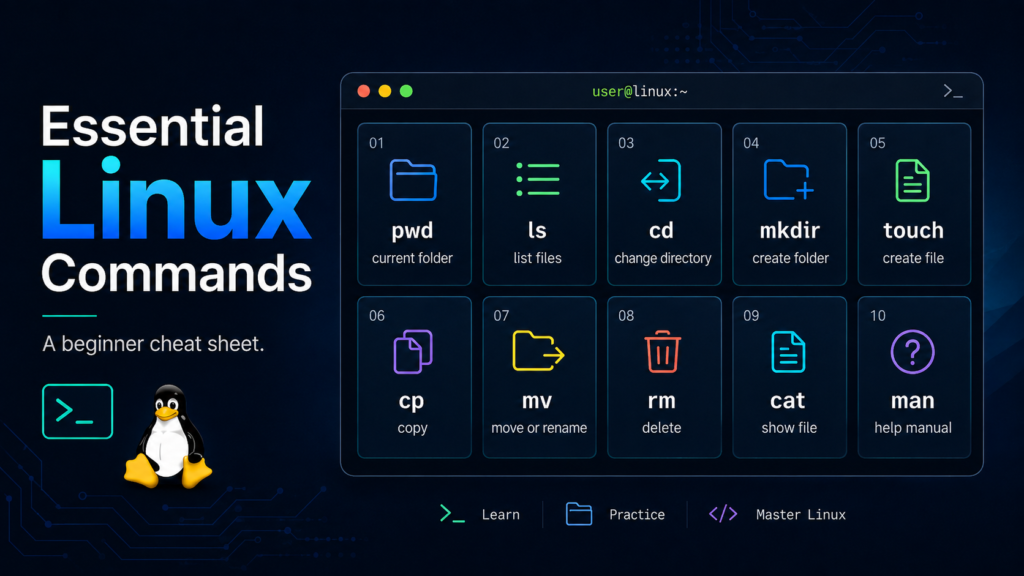
pwd — Show Your Current Location
pwd
Think of it as asking Linux:
Where am I?
ls — List Files
ls
To display additional information:
ls -l
To include hidden files:
ls -a
cd — Change Directory
Move into your Documents directory:
cd Documents
Move up one directory:
cd ..
Return to your home directory:
cd ~
mkdir — Create a Directory
mkdir projects
touch — Create an Empty File
touch notes.txt
cp — Copy Files
cp notes.txt notes-backup.txt
mv — Move or Rename Files
Rename a file:
mv notes.txt linux-notes.txt
rm — Delete Files
rm linux-notes.txt
Be careful with rm.
Unlike moving something to your desktop’s Trash folder, command-line deletion may be immediate.
cat — Display a Text File
cat notes.txt
clear — Clear the Terminal
clear
history — Show Previous Commands
history
This is useful when you want to repeat or review commands you previously entered.
A Useful Terminal Shortcut: Tab Completion
You rarely need to type long filenames manually.
Suppose you have a file named:
my-linux-learning-notes.txt
You might type:
cat my-lin
and press Tab.
If Linux can uniquely identify the filename, the shell completes it for you.
Tab completion makes command-line work much faster and reduces typing mistakes.
Hidden Files in Linux
Linux configuration files frequently begin with a period:
.bashrc
or:
.config
Files and directories beginning with . are normally hidden from standard directory listings.
You can display them with:
ls -a
Many desktop applications store user-specific configuration inside hidden directories in your home folder.
How Linux Installs Software
Windows users often download programs from websites and run .exe or .msi installers.
Linux commonly uses a different model.
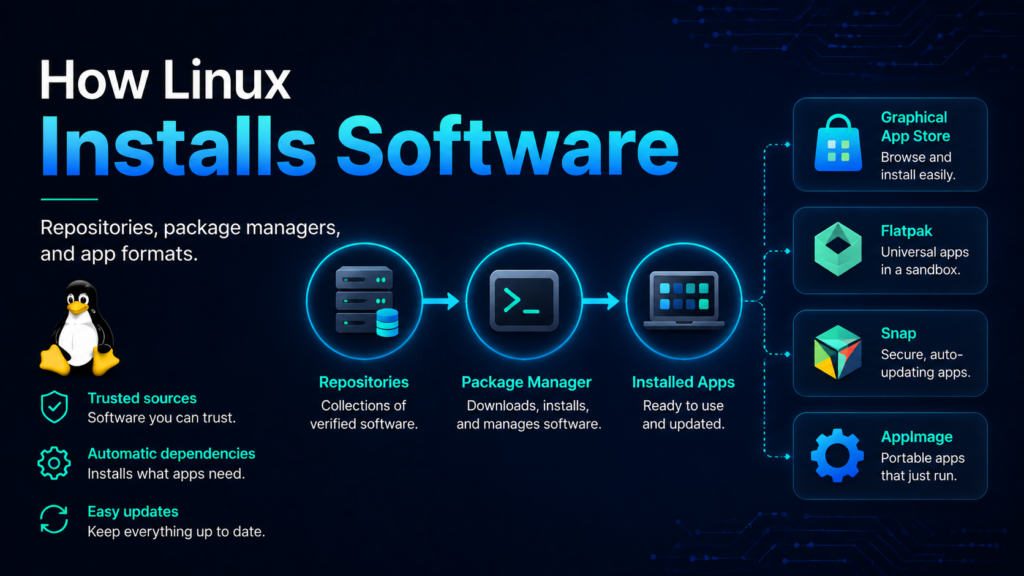
Software is typically distributed through centralized repositories.
Your distribution uses a package manager to search, install, update, and remove software.
This provides several advantages:
- Applications can be installed from trusted repositories.
- Dependencies can be installed automatically.
- Multiple applications can be updated together.
- Software removal is easier to manage.
Many Linux distributions also provide graphical app stores, meaning you do not need to install everything through the terminal.
Linux Package Managers
Different distribution families use different package management systems.
Debian and Ubuntu-Based Systems
These commonly use APT.
Update available package information:
sudo apt update
Install a package:
sudo apt install package-name
Remove a package:
sudo apt remove package-name
Fedora
Fedora uses DNF.
Install software with:
sudo dnf install package-name
Arch Linux
Arch uses Pacman.
Install software with:
sudo pacman -S package-name
Do not worry about learning every package manager.
You only need to learn the one used by your distribution.
What Is a Repository?
A repository is essentially an organized source of software packages.
When you install an application through your package manager, Linux can retrieve the necessary files from repositories configured for your system.
This is one of the reasons commands such as:
sudo apt update
exist.
That command does not normally update every installed application by itself. It refreshes the package information so your computer knows what versions are available.
On APT-based systems, upgrading installed packages is typically performed separately:
sudo apt upgrade
What Are Flatpak, Snap, and AppImage?
Traditional distribution repositories are not the only way Linux software can be distributed.
You may encounter several additional formats.
Flatpak
Flatpak packages are designed to work across many Linux distributions.
They are particularly popular for desktop applications.
Snap
Snap is another cross-distribution packaging system and is closely associated with Ubuntu.
AppImage
An AppImage is often distributed as a single executable file that can run without a traditional installation process.
Each format has advantages and disadvantages. As a beginner, there is no need to develop strong opinions about them immediately.
Use the software source that your distribution recommends unless you have a reason to do otherwise.
Updating Linux
Keeping Linux updated is one of the simplest things you can do to improve reliability and security.
Most desktop distributions provide a graphical update utility.
You can also update from the terminal.
On Ubuntu- and Debian-based distributions, you may commonly see:
sudo apt update
sudo apt upgrade
On Fedora:
sudo dnf upgrade
The exact process varies by distribution.
Installing Drivers
Linux includes support for a huge amount of hardware directly in the kernel.
As a result, many devices work immediately after installation.
However, certain hardware may require additional drivers or firmware, particularly:
- Some graphics cards
- Certain Wi-Fi adapters
- Specialized peripherals
- Printers and scanners
Beginner-friendly distributions often provide graphical utilities that help identify and install available drivers.
Before buying a computer specifically for Linux, searching for reports about that model’s Linux compatibility can save considerable frustration.
What Software Is Available on Linux?
Linux has thousands of applications covering most common computing tasks.
Web Browsing
Popular browsers available on Linux include:
- Firefox
- Google Chrome
- Chromium
- Brave
- Microsoft Edge
Office Work
LibreOffice is one of the best-known open-source office suites and includes tools for:
- Documents
- Spreadsheets
- Presentations
- Databases
If you depend heavily on complex Microsoft Office documents, macros, or organization-specific Microsoft integrations, compatibility should be tested before switching completely.
Browser-based office applications can also be an option.
Image Editing
Popular tools include:
- GIMP
- Krita
- Inkscape
- Darktable
Video and Audio
Linux software includes tools such as:
- VLC
- OBS Studio
- Kdenlive
- Audacity
Programming
Linux supports virtually every major development environment and programming language.
Common tools include:
- Visual Studio Code
- Git
- Python
- Node.js
- GCC
- Docker
- Vim
- Neovim
- JetBrains IDEs
This developer ecosystem is one of Linux’s biggest strengths.
Can You Play Games on Linux?
Yes.
Linux gaming has improved dramatically.
Steam provides Linux support, and compatibility technologies such as Proton allow many Windows games to run on Linux.
However, compatibility is not universal.
Some games—especially titles using certain anti-cheat or proprietary technologies—may still have limitations.
If a particular game is essential to you, investigate its Linux compatibility before removing Windows.
Understanding Linux Permissions
Linux controls who can read, modify, or execute files.
You may see permissions displayed like this:
-rwxr-xr--
At first, this looks cryptic.
The permissions are grouped around three types of access:
- r = read
- w = write
- x = execute
And they apply to categories such as:
- The file owner
- The file’s group
- Other users
You do not need to master permissions immediately, but understanding the concept becomes important as you explore Linux administration.
What Does chmod Do?
chmod changes file permissions.
For example:
chmod +x script.sh
adds executable permission to script.sh.
That allows the file to be run as a program, assuming it contains valid executable instructions.
What Is a Process?
Whenever you run an application, Linux creates one or more processes.
You can view running processes with commands such as:
ps
Another commonly available utility is:
top
This displays a continuously updating view of system activity.
Many users also install more user-friendly alternatives such as htop.
Your desktop’s graphical system monitor provides similar information if you prefer not to use the terminal.
Installing Programs Is Not the Same as Running as Administrator
Windows users may be accustomed to applications occasionally asking to “Run as administrator.”
Linux separates regular and administrative privileges aggressively.
Your normal applications generally should not need root access.
Be suspicious of instructions that unnecessarily tell you to:
sudo ...
especially when the command comes from an unknown source.
Understanding what a command does before giving it administrator privileges is an excellent Linux habit.
Linux Security Basics
Linux has a strong security model, but no operating system is invulnerable.
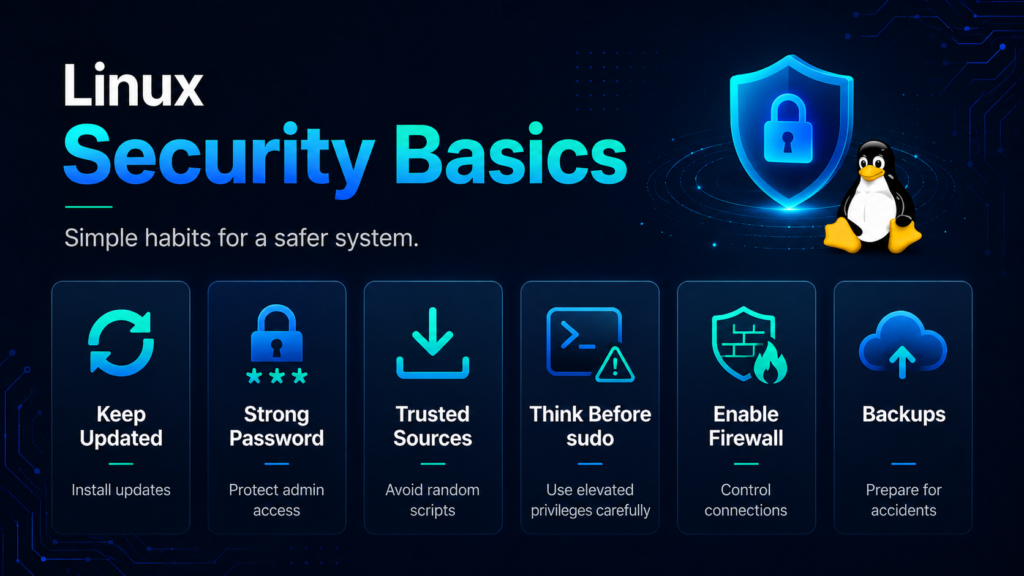
Follow a few fundamental rules.
Keep Your System Updated
Security vulnerabilities are regularly discovered and fixed.
Install updates reasonably promptly.
Use a Strong Password
Your account password may also authorize administrative actions through sudo.
Treat it accordingly.
Install Software From Trusted Sources
Prefer:
- Your distribution’s repositories
- Your distribution’s app store
- Official vendor sources
- Well-established package platforms
Avoid blindly executing installation scripts copied from unknown websites.
Think Before Using sudo
A command with root privileges can modify critical system files.
Know what the command is doing.
Enable a Firewall When Appropriate
Many Linux distributions provide firewall tools.
A popular command-line firewall interface on Ubuntu-based systems is UFW.
You can inspect its status with:
sudo ufw status
Desktop users behind a typical home router are not exposed in exactly the same way as public internet servers, but understanding firewall basics is still worthwhile.
Maintain Backups
Security is not only about attackers.
Hardware failure, accidental deletion, filesystem problems, and human error can destroy important data just as effectively.
A proper backup strategy matters on every operating system.
Linux Antivirus: Do You Need It?
Linux malware exists.
However, Linux desktop systems are attacked differently from Windows systems, and desktop Linux users traditionally rely heavily on:
- Repository-based software installation
- Strong permissions
- Rapid security updates
- Limited administrative privileges
- Good security practices
Antivirus tools are available for Linux and may make sense in certain environments.
The more important lesson is that Linux should not be treated as magically immune to malware.
Basic security hygiene still matters.
Common Beginner Mistakes
Most Linux beginners eventually make a few predictable mistakes.
Copying Terminal Commands Without Understanding Them
A command that worked for someone else may:
- Target a different distribution
- Be outdated
- Change important configuration
- Delete data
- Introduce security risks
Before running a complicated command—especially one involving sudo—find out what it does.
Distribution Hopping Too Soon
Trying new Linux distributions can become addictive.
Linux users even have a term for repeatedly switching between them: distro hopping.
Experimenting is fun, but constantly reinstalling your operating system can prevent you from learning how to solve ordinary problems.
Pick a beginner-friendly distribution and use it for a while.
Customizing Everything Immediately
Linux customization can become a hobby of its own.
But replacing desktop environments, kernels, display managers, repositories, bootloaders, and system components during your first week can make troubleshooting significantly harder.
Learn the default system first.
Expecting Linux to Behave Exactly Like Windows
Linux is not a free version of Windows.
Some concepts, workflows, applications, and conventions are intentionally different.
Learning Linux becomes much easier once you stop trying to make every component behave exactly like another operating system.
Ignoring Backups
Eventually, almost every technology enthusiast learns this lesson.
Do not wait until after losing important files.
How to Get Help When Something Goes Wrong
One of Linux’s greatest strengths is its community.
When searching for a solution, include useful details such as:
- Your Linux distribution
- Your distribution version
- Desktop environment
- Computer model
- Error message
- Relevant hardware
- What you were trying to accomplish
Instead of searching:
Linux Wi-Fi broken
try something more specific:
Ubuntu Wi-Fi adapter not detected Intel AX201
Specific searches produce much better results.
Learn to Read Error Messages
Beginners often see an error message and immediately search the entire message online.
Before doing that, read it carefully.
Linux tools frequently provide surprisingly useful information.
An error might tell you:
- A file does not exist.
- Permission was denied.
- A package cannot be found.
- A network connection failed.
- A command was typed incorrectly.
- Another process is using a resource.
Learning to interpret error messages is one of the most valuable technical skills you can develop.
The man Command Is Your Friend
Many Linux commands include built-in manuals.
To read the documentation for ls, enter:
man ls
Press q to exit the manual.
You can also often display a shorter summary using:
ls --help
Instead of memorizing every command option, learn how to find the documentation when you need it.
That skill scales much better.
Keyboard Shortcuts Worth Learning
Linux desktop shortcuts vary, but the terminal itself has several useful conventions.
Ctrl + C
Stops the currently running terminal command in many situations.
Ctrl + L
Clears the terminal display in many shells.
Up Arrow
Cycles backward through previously entered commands.
Tab
Completes commands, filenames, and directory names where supported.
These four shortcuts alone can make terminal use considerably more comfortable.
Basic Linux Networking Commands
You do not need networking expertise to use Linux, but a few commands can help diagnose problems.
Check Network Interfaces
ip address
You may also see the shorter form:
ip a
Test Connectivity
ping example.com
Stop the command with:
Ctrl + C
Download a Web Resource
A commonly available tool is:
curl
For example:
curl https://example.com
Developers and system administrators use tools like curl constantly when working with web services and APIs.
What Is SSH?
SSH stands for Secure Shell.
It allows you to securely connect to another computer over a network and control it through a terminal.
A basic SSH connection looks similar to:
ssh username@server-address
SSH is one of the most important technologies to learn if you plan to work with:
- Servers
- Cloud computing
- Raspberry Pi systems
- Web hosting
- DevOps
- Remote Linux machines
You do not need SSH for normal desktop Linux use, but you will encounter it frequently as your skills grow.
What Are Environment Variables?
Programs sometimes need values that describe their environment.
Linux stores many of these values in environment variables.
You can view one with:
echo $HOME
You might receive:
/home/alex
Another important variable is:
echo $PATH
PATH tells your shell which directories to search when you type a command.
Environment variables become increasingly important when working with programming tools and server software.
What Is Bash?
When you enter commands in a terminal, another program interprets those commands.
This program is called a shell.
One of the most common Linux shells is Bash, short for Bourne Again Shell.
Other popular shells include:
- Zsh
- Fish
- Dash
Beginners do not need to switch shells.
Learn the basics of whichever shell your distribution provides first.
Linux Configuration Files
A major difference between Linux and many desktop operating systems is the importance of text-based configuration files.
System-wide configuration often exists under:
/etc
User-specific application settings frequently exist within hidden files or directories in your home directory.
For example:
~/.config
The ~ symbol represents your home directory.
Therefore:
~/.config
could represent:
/home/alex/.config
for a user named Alex.
Linux Logs
When troubleshooting, logs can reveal what happened behind the scenes.
Many system logs can be accessed through tools associated with the system’s logging infrastructure.
On distributions using systemd, one important command is:
journalctl
For example, recent system messages can often be inspected with:
journalctl -b
You do not need to understand every log entry.
The important idea is that Linux often records useful diagnostic information that can help explain failures.
What Is systemd?
You will eventually encounter the word systemd.
Systemd is a collection of system management components used by many major Linux distributions.
Among other things, it helps manage services.
For example, a web server might run as a background service.
You may see commands such as:
systemctl status service-name
or:
sudo systemctl restart service-name
This becomes particularly important when learning Linux server administration.
For everyday desktop use, you may rarely need to interact with it directly.
Should You Learn the Command Line?
Yes—but gradually.
You can use a modern Linux desktop without becoming a terminal expert, but learning the command line unlocks much more of Linux’s power.
A good progression is:
- Learn file navigation.
- Learn file creation and deletion.
- Learn package management.
- Learn permissions.
- Learn processes.
- Learn networking basics.
- Learn shell scripting.
Do not try to memorize everything.
Use commands to solve real problems, and repetition will take care of the memorization.
Your First Linux Practice Session
If you have Linux available, open a terminal and try the following.
Check your current directory:
pwd
List your files:
ls
Create a practice directory:
mkdir linux-practice
Enter it:
cd linux-practice
Create a file:
touch hello.txt
List the directory contents:
ls
Rename the file:
mv hello.txt notes.txt
Create another directory:
mkdir backup
Copy the file into it:
cp notes.txt backup/
View the results:
ls
ls backup
Return home:
cd ~
Congratulations—you have already used the Linux command line to navigate directories and create, rename, and copy files.
A Beginner Linux Learning Roadmap
Once you have installed Linux, resist the temptation to learn everything simultaneously.
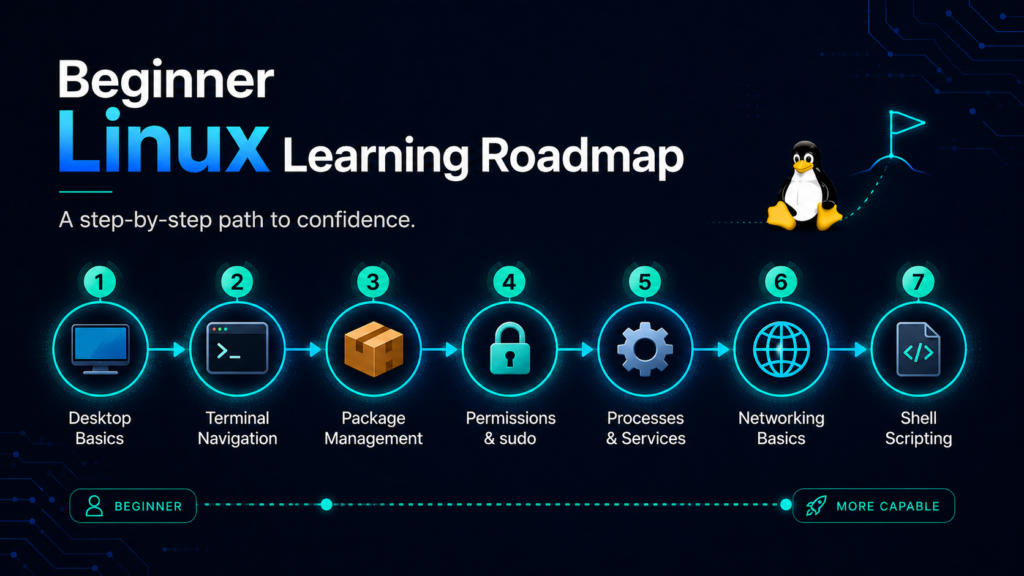
Stage 1: Become Comfortable With the Desktop
Learn how to:
- Connect to Wi-Fi
- Install software
- Update your system
- Browse files
- Change basic settings
- Connect external drives
- Use your everyday applications
Stage 2: Learn Basic Terminal Navigation
Practice:
pwd
ls
cd
mkdir
cp
mv
rm
cat
Stage 3: Understand Package Management
Learn how your distribution:
- Searches for packages
- Installs software
- Removes software
- Updates packages
Stage 4: Learn Permissions and Users
Understand:
- Regular users
- Root
sudo- File ownership
- Read/write/execute permissions
Stage 5: Learn Processes and Services
Explore:
ps
top
systemctl
journalctl
Stage 6: Learn Basic Networking
Become familiar with:
ip
ping
curl
ssh
Stage 7: Learn Shell Scripting
Once basic commands feel natural, start combining them into scripts.
A simple Bash script might look like:
#!/bin/bash

echo "Hello from Linux!"
Scripting is where the command line begins turning from a collection of commands into an automation platform.
Should You Switch Completely to Linux?
Not necessarily.
Linux does not have to replace your existing operating system to be useful.
You can learn Linux through:
- A spare laptop
- A virtual machine
- WSL
- A Raspberry Pi
- A cloud server
- Dual booting
- A live USB
Whether Linux should become your primary operating system depends on your needs.
Before switching completely, check whether you depend on specialized software for:
- Work
- School
- Gaming
- Music production
- Video editing
- CAD
- Adobe applications
- Microsoft Office workflows
- Proprietary hardware
Linux alternatives may exist, but alternatives are not always identical replacements.
Frequently Asked Questions About Linux
Is Linux really free?
Most Linux distributions are available free of charge.
Companies can still sell Linux-related services, enterprise subscriptions, support, hosting, software, hardware, and other products.
Do I need to know programming to use Linux?
No.
Programming knowledge is not required for everyday Linux desktop use.
Do I need to use the terminal?
Not for everything.
Modern Linux distributions provide graphical interfaces for most common tasks. However, learning some terminal commands will make you a more capable Linux user.
Can Linux run Windows programs?
Sometimes.
Compatibility tools such as Wine and Proton can run many Windows applications and games, but compatibility is not guaranteed.
Virtual machines and dual booting are additional options when native Linux alternatives are unavailable.
Can Linux get viruses?
Yes.
Linux is not immune to malware or security vulnerabilities. Good security practices, updates, trusted software sources, strong passwords, and backups remain important.
Which Linux distribution is best for beginners?
Linux Mint and Ubuntu are both strong starting points for many beginners because of their accessible interfaces, large communities, and extensive documentation.
Fedora is another excellent option for users who want a polished modern Linux environment.
Will Linux make my old computer faster?
It can.
A lightweight Linux distribution may use fewer resources than the operating system currently installed on an older computer.
Performance still depends on the hardware, applications, desktop environment, storage device, and workload.
Is Linux good for gaming?
Linux gaming is significantly better than it once was, particularly thanks to Steam and Proton.
Compatibility still varies by game, so check your must-have titles before switching permanently.
Is Linux good for programmers?
Absolutely.
Linux provides excellent development tools and is widely used for web development, servers, cloud infrastructure, containers, DevOps, cybersecurity, and many other technical fields.
Can I install Linux without deleting Windows?
Yes.
You can use Linux through a virtual machine or WSL without replacing Windows, or configure a dual-boot installation that lets you select an operating system when the computer starts.
Final Thoughts
Linux can appear intimidating because it introduces unfamiliar terminology and gives users far more control than many mainstream operating systems.
But you do not need to become a system administrator before you can enjoy it.
Start with a beginner-friendly distribution. Use the graphical desktop. Learn a few terminal commands. Install some applications. Break something minor. Figure out how to fix it.
That process is how Linux starts making sense.
The goal is not to memorize hundreds of commands or understand every directory on your first day. The goal is to become comfortable enough that unfamiliar Linux concepts stop looking mysterious.
Once that happens, you will discover why so many developers, hobbyists, businesses, researchers, and technology enthusiasts rely on Linux every day.
And perhaps most importantly, learning Linux teaches you more than simply how to use another operating system.
It teaches you how computers actually work.
Linux Beginner Cheat Sheet
Bookmark this section for quick reference.
| Task | Command |
|---|---|
| Show current directory | pwd |
| List files | ls |
| List hidden files | ls -a |
| Change directory | cd directory |
| Go home | cd ~ |
| Move up one directory | cd .. |
| Create directory | mkdir directory |
| Create empty file | touch file.txt |
| Copy file | cp source destination |
| Move/rename file | mv source destination |
| Delete file | rm file.txt |
| Display text file | cat file.txt |
| Clear terminal | clear |
| Show command history | history |
| View command manual | man command |
| Stop running terminal command | Ctrl + C |
| Show network information | ip a |
| Test network connectivity | ping example.com |
| Connect to remote system | ssh user@server |
Where to Go Next
Once the basics in this guide feel comfortable, good topics to explore include:
- Linux file permissions
- Bash scripting
- SSH
- Git and GitHub
- Linux networking
- Docker and containers
- Linux server administration
- Web hosting
- Cybersecurity fundamentals
- Python development on Linux
- Linux system monitoring
Linux is enormous. You do not need to learn all of it.
Choose the parts that help you accomplish something you care about, and build from there.
Welcome to Linux—and welcome to the rabbit hole.