
Microsoft released Windows 11 version 26H2, also known as the Windows 11 2026 Update, on September 29, 2026. But what if the new version doesn’t appear when you check Windows Update?
If you’re still running Windows 11 24H2 or 25H2, you might expect to see a download option. Instead, Windows may simply tell you that your device is up to date.
The good news is that a missing feature update doesn’t necessarily mean something is wrong with your computer. Windows Update uses compatibility checks, device eligibility information, and other conditions to determine when an upgrade can be offered.
In this guide, we’ll explain why Windows 11 26H2 isn’t showing up and walk through seven safe troubleshooting steps, starting with the easiest.
Table of Contents
Quick answer: Why is Windows 11 26H2 missing?
As of October 21, 2026, Microsoft says Windows 11 26H2 has reached full availability for eligible devices running Windows 11 24H2 and 25H2.
However, that doesn’t mean every PC is guaranteed to receive the update immediately.
Common reasons include:
- Your PC is running an older or different Windows release.
- Windows Update is paused or a restart is pending.
- Your device has a known compatibility issue.
- Microsoft has applied a safeguard hold.
- Windows Update is experiencing a download or installation error.
- Your computer is managed by an organization that controls feature updates.
Important: If Microsoft has placed a compatibility safeguard on your device, forcing the upgrade could introduce problems. Check the reason before attempting a manual installation.
1. Check your current Windows 11 version
Before troubleshooting, confirm which Windows version is installed.
- Press Windows + R on your keyboard.
- Type
winverinto the Run dialog. - Press Enter.
- Look for the version number in the About Windows window.
You might see one of these versions:
- 24H2: An older Windows 11 feature release.
- 25H2: The 2025 feature update.
- 26H1: A specialized release for selected newer hardware.
- 26H2: The 2026 feature update.
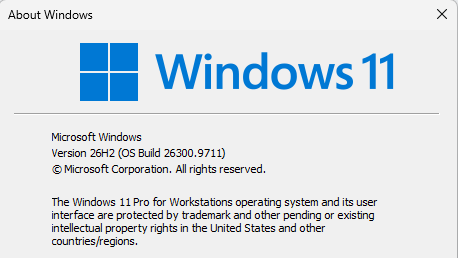
If the window already says Version 26H2, you don’t need to install the feature update again.
If you’re running 24H2 or 25H2, your device may be eligible for the streamlined 26H2 upgrade.
Windows 11 26H1 is different. Microsoft designed it for specific new hardware platforms, and it should not be confused with the normal annual upgrade path.
You can also find your installed version under Settings > System > About > Windows specifications.
2. Enable the latest updates in Windows Update
The next step is to check the update settings.
- Press Windows + I to open Settings.
- Select Windows Update.
- Enable Get the latest updates as soon as they’re available.
- Click Check for updates.
- Wait for Windows to complete the scan.
If you see Windows 11, version 26H2 is available, select Download & install.
Follow the prompts and restart your PC when requested.
Microsoft uses an enablement package for eligible devices moving from 24H2 or 25H2 to 26H2. Because these versions share a common servicing foundation, the upgrade can be much quicker than a traditional major Windows installation.
What if Windows says you’re up to date?
That message means Windows Update currently has no additional update to offer your device.
It doesn’t prove that 26H2 is incompatible, but it also doesn’t mean you should force the upgrade.
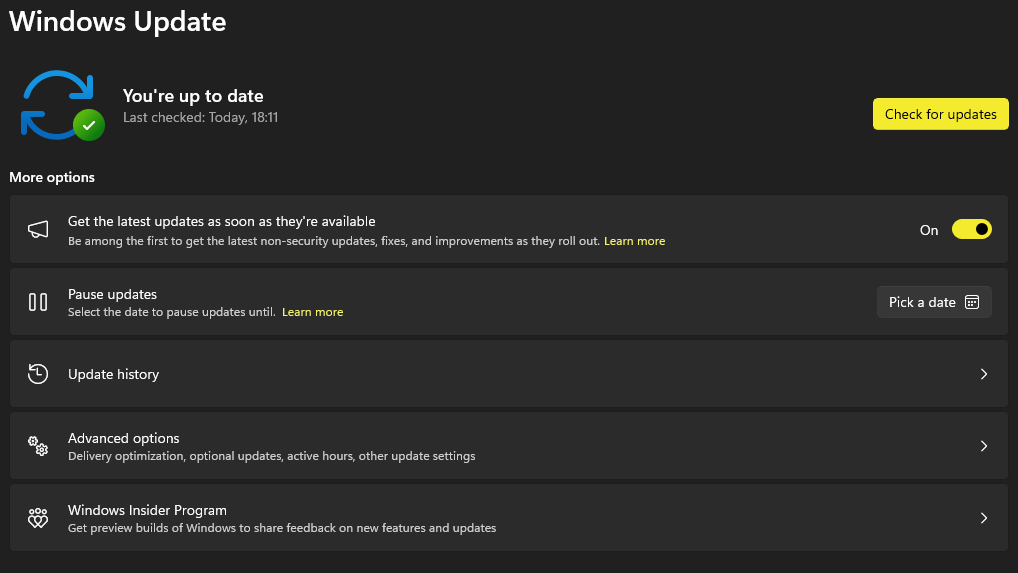
Continue with the following checks.
3. Check for paused updates and restart your PC
Sometimes the simplest explanation is an unfinished update or a pending restart.
Open Settings > Windows Update and check whether updates are paused.
If they are, select Resume updates.
Next, look for a notification requesting a restart. Save your work and restart your PC if necessary.
After restarting:
- Reconnect to the internet.
- Open Windows Update again.
- Install any pending updates.
- Restart if requested.
- Check for Windows 11 26H2 again.
Make sure your laptop is connected to power during the upgrade.
This process can help if a previous update is preventing further installations. However, restarting won’t remove a compatibility safeguard.
Check the Windows 11 26H2 prerequisite update
Windows 11 26H2 uses a small enablement package called KB5121794. According to Microsoft, your PC must be running Windows 11 24H2 or 25H2 and have KB5124010 (September 22, 2026) or a later cumulative update installed.
To check:
- Open Settings > Windows Update > Update history.
- Look for KB5124010 or a newer cumulative update.
- If neither is installed, return to Windows Update and check for available updates.
- Install the applicable cumulative update and restart your computer.
- Check for Windows 11 26H2 again.
You don’t need to install KB5124010 separately if a newer cumulative update already satisfies the requirement.
For technical details, see Microsoft’s official KB5121794 documentation.
Note: Meeting these prerequisites does not override a compatibility safeguard or organizational update policy.
4. Check for a Windows 11 26H2 compatibility hold
One of the most important reasons a feature update may be missing is a safeguard hold.
Microsoft uses safeguard holds to prevent certain devices from receiving an update when a known problem could affect reliability, connectivity, or important hardware and software features.
For example, an incompatibility involving a particular driver or device configuration could delay an upgrade.
How to investigate
First, visit Microsoft’s official Windows 11 26H2 release health dashboard.
Review the known issues and safeguard information.
If Windows Update displays a message saying an update is on its way but isn’t ready for your device, that may also indicate a compatibility restriction.
Not every compatibility issue will be easy to identify from the public dashboard.
Should you bypass a safeguard hold?
Generally, no.
A safeguard hold exists to protect devices from known problems. If your computer is affected, the safest option is to wait for a confirmed fix or follow specific guidance from Microsoft or your device manufacturer.
Avoid registry tricks, unofficial upgrade scripts, and modified installation images promoted as universal solutions.
A missing update is less serious than a failed upgrade that leaves your PC unstable.
5. Run the Windows Update troubleshooter
If Windows Update displays an error code, refuses to download updates, or repeatedly fails, use Microsoft’s built-in troubleshooter.
Option A: Use the Get Help app
- Open the Start menu.
- Search for Get Help.
- Launch the app.
- Search for Windows Update troubleshooter.
- Follow the instructions.
The troubleshooter can run diagnostics and suggest fixes for common update problems.
Option B: Use Windows Settings
Depending on your Windows version and configuration, you can also try:
- Open Settings.
- Go to System > Troubleshoot > Other troubleshooters.
- Find Windows Update.
- Select Run, if available.
- Restart the computer after completing the troubleshooting process.
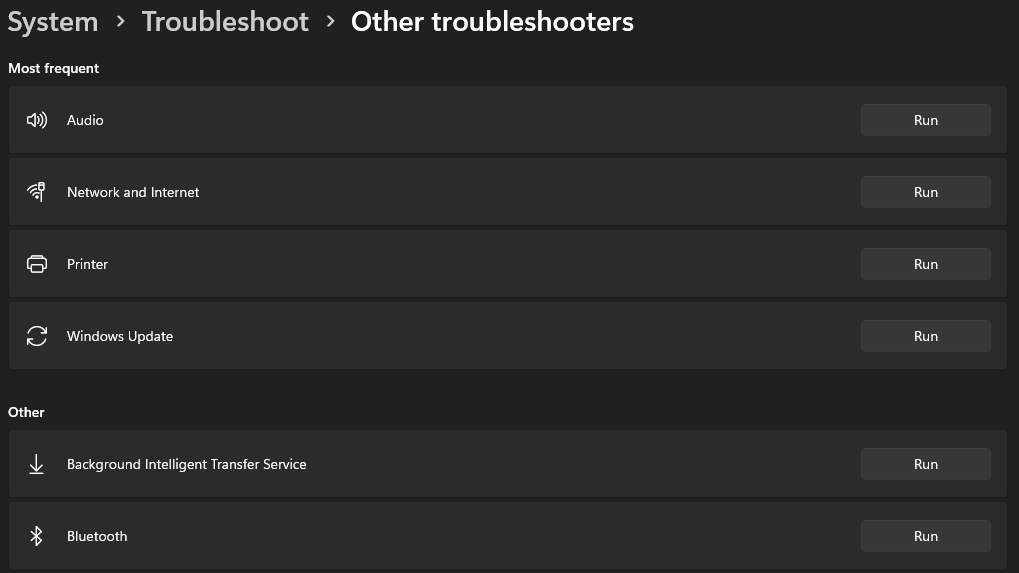
You can find additional information in Microsoft’s Windows Update troubleshooting guide.
Remember: The troubleshooter can repair certain update errors, but it cannot make an unsupported or safeguard-blocked feature update safe to install.
6. Check storage space, drivers, and device management
Windows may encounter upgrade problems if your system doesn’t have enough available storage or has unresolved driver issues.
Check available storage
Go to Settings > System > Storage.
Review the amount of free space on your Windows drive.
If storage is nearly full, consider:
- Removing unnecessary temporary files through Windows Storage settings.
- Uninstalling applications you no longer use.
- Moving large personal files to another drive after backing them up.
- Emptying the Recycle Bin after checking its contents.
Avoid manually deleting files from Windows system directories.
Check drivers
Open Device Manager and look for devices displaying warning symbols.
If you find a problem, check your PC manufacturer’s official support website for a compatible driver.
Don’t install random driver packages from third-party download websites.
Is your PC managed by your workplace or school?
If Windows displays Some settings are managed by your organization, your administrator may control feature update availability.
In that situation, contact your IT department rather than trying to bypass its update policies.
7. Consider Microsoft’s official Installation Assistant
If Windows 11 26H2 still isn’t showing up, you might be considering a manual upgrade.
Microsoft provides an official Windows 11 Installation Assistant through its Windows 11 download page.
Before using it, check the following:
- Your computer meets the relevant Windows 11 requirements.
- You have a valid Windows license.
- Your important files are backed up.
- Your device isn’t affected by a known compatibility safeguard.
- You have a reliable internet connection and adequate storage.
The Installation Assistant is designed for supported x64 PCs. It isn’t supported on Arm-based devices.
Our recommendation: Use Windows Update as your first choice. Consider the Installation Assistant only after confirming that your computer is supported and there is no known issue that makes upgrading unsafe.
If the update is withheld because of a compatibility problem, waiting for the official fix is the better approach.
Windows 11 26H2 still not appearing? Here’s what to do next
After trying the steps above, you may still see Windows 11 25H2 or another version listed in the About Windows window.
At that point, focus on identifying the cause rather than repeating the same troubleshooting steps.
| What you’re seeing | Recommended action |
|---|---|
| Windows says you’re up to date | Verify your version and check release health |
| Windows Update is paused | Resume updates and check again |
| An update is waiting for a restart | Restart and install pending updates |
| Windows Update displays an error code | Run the troubleshooter |
| A known compatibility issue affects your PC | Follow Microsoft’s guidance and avoid forcing the upgrade |
| Your organization controls updates | Contact your IT administrator |
| Version 26H2 is already installed | No feature upgrade is needed |
You can also find additional troubleshooting information in the Microsoft Windows Update support documentation.
Related reading: How to Partition a Drive Using DiskPart in Windows 11.
Frequently asked questions
Is Windows 11 26H2 available now?
Yes. Microsoft released Windows 11 26H2 on September 29, 2026. On October 21, Microsoft announced full availability for eligible devices running Windows 11 24H2 and 25H2.
Individual devices may still be affected by compatibility restrictions.
Why isn’t Windows 11 26H2 showing up on my PC?
Common reasons include Windows Update settings, a pending restart, a compatibility safeguard, a managed update policy, or an actual Windows Update error.
The absence of the update alone doesn’t identify which reason applies to your PC.
Is Windows 11 26H2 a free update?
Windows 11 26H2 is available through Windows Update for eligible, properly licensed Windows 11 devices without requiring a separate purchase of the feature update.
Does Windows 11 26H2 improve performance?
Version 26H2 includes Microsoft’s latest servicing and reliability improvements, but you shouldn’t assume it will noticeably increase performance on every computer.
Actual performance depends on your hardware, drivers, installed software, and system configuration.
Will upgrading to Windows 11 26H2 delete my files?
A normal in-place feature update is intended to preserve personal files and installed applications.
However, unexpected failures are possible during any major system change. Back up important data before upgrading.
Can I install Windows 11 26H2 manually?
Microsoft provides official Windows installation tools, but their availability does not guarantee that a particular PC is safe or eligible for an immediate upgrade.
Check for compatibility restrictions before using manual installation methods.
Should I upgrade to Windows 11 26H2 immediately?
If your computer is eligible and Windows Update offers the release normally, installing it is a reasonable way to remain on a supported Windows version.
If a compatibility hold applies, wait for the issue to be resolved.
Final thoughts
If Windows 11 26H2 isn’t showing in Windows Update, don’t assume your computer needs to be reset or Windows needs to be reinstalled.
Start by checking your installed version using winver. Then review Windows Update settings, install pending updates, and check Microsoft’s release health information for compatibility restrictions.
If Windows Update reports an actual error, use the built-in troubleshooter.
Above all, avoid forcing an upgrade on a device affected by a known safeguard hold.
Keeping your computer updated matters, but a safe and stable Windows installation should always come first.
Last reviewed: October 28, 2026. Windows update availability and known issues can change; check Microsoft’s release health dashboard for the latest status.
[…] For other update availability problems, check our related guide: Windows 11 26H2 Not Showing in Windows Update? 7 Ways to Fix It. […]